The ‘Payday Super Processing' program helps schools comply with the Australian Taxation Office’s (ATO’s) Payday Super requirements by ensuring super contributions are processed and received by the employee's super fund within 7 business days of a pay day.
It can be accessed by navigating to TASS.webPayroll HRM > Payroll > Pay Run Processing and selecting 'Payday Super Processing' from the side menu.
This program uses a secure API connection to OZEDI (a SuperStream-certified Payday Super Gateway Provider) to exchange data and integrate with TASS.web pay run workflows, and is typically run after your school’s Single Touch Payroll (STP) Pay Event has been accepted by the ATO.
From the Payday Super Processing program, you can generate and review Super Event details for each pay run, upload a remittance file to OZEDI, and make payments to OZEDI, who will then distribute each employee’s superannuation contribution to the relevant funds and member accounts.
The program can be set up to transfer the total contribution amount for each pay run to OZEDI either via a manual bank transfer or by automatically deducting contributions from the school's nominated bank account through a PayTo Agreement with OZEDI and Zepto (OZEDI’s New Payments Platform (NPP) partner), enabling seamless, near-instant processing through the SuperStream network.
Enabling the Payday Super Processing program and workflow is optional, but highly beneficial. This feature simplifies compliance with Payday Super requirements by seamlessly integrating tasks into your existing TASS pay run workflows. The cost of the API connection to OZEDI is included in your school’s TASS license, making it a convenient addition. If you prefer to, your school can continue using existing superannuation payment methods, as long as your internal processes and clearing house(s) meet the Australian Taxation Office (ATO) Payday Super and SuperStream deadlines. However, consider that TASS.web Payday Super Processing ensures smooth, compliant payments with minimal effort.
Access to this program is controlled by the ‘Payday Super Processing’ security point in the Payroll section of TASS.webSystem Admin > Users > User Maintenance or TASS.web System Admin > Users > Security Role Permissions. Contact your school’s TASS System Administrator for access.
For payrolls to appear in this program, the logged-in user must also have payroll-specific access permissions granted in TASS.webPayroll HRM > Payroll > Setup Information > User/Payroll Access.
Enable the Payday Super feature in TASS.webPayroll HRM > Payroll > Setup Information > Superannuation Funds on the ‘Super Parameters’ tab.
Refer to the ‘Setting up Payday Super Processing’ article for more information.
About the Payday Super API Gateway
The Payday Super initiative requires Australian employers to pay Superannuation Guarantee contributions at the same time as salary and wages payments. This change, effective from 1 July 2026, means that super contributions must be received by the employee's super fund within 7 business days of payday, rather than the previous quarterly system. See the ATO website for more information.
SuperStream is the Australian government’s electronic framework for processing superannuation contributions. It is the new way businesses must pay employee superannuation guarantee contributions to super funds. A SuperStream-certified product transmits money and information consistently across the super system – between employers, funds, service providers and the Australian Taxation Office (ATO). The data sent by the employee is then linked to the payment by a unique payment reference number. See the ATO website for more information.
OZEDI is a SuperStream-certified product providing an integrated data and payment clearing solution. TASS has partnered with OZEDI to support the Payday Super Workflow in TASS.web. OZEDI’s superannuation solution offers multiple payment options, including instant payments, and manages super payments to employees' super funds on your behalf. This solution enables data and payment instructions to be processed within TASS, eliminating the need to export and upload files to a clearing house separately. This API connection is included in your TASS licensing agreement at no extra cost. Refer to the OZEDI website for further details on their SuperStream and Superannuation Messaging Network.
Super Event List
The ‘Super Event List’ appears when launching the Payday Super Processing program, and summarises the Payday Super Events that have been generated for each pay run.
Payday Super Events are generated during the Pay Run Checklist, after completing the Pay Run Reset in TASS.webPayroll HRM > Payroll > Pay Run Processing > Pay Run Reset.
This list includes all Payday Super Events with associated Single Touch Payroll (STP) events accepted by the ATO in the past 60 days, as well as those in progress or completed.
Each Super Event displays a status indicating its stage in the Payday Super Workflow. The Actions column updates to show available actions based on this status.
From the ‘Actions’ column of the Super Events List, you can:
Generate a SAFF file with employee superannuation contribution details using parameters defined in TASS.webPayroll HRM > Payroll > Listings & Report > Super Remittance File/Report > ‘SAFF Parameters’ icon.
Review the superfund and individual employee superannuation contribution details for each pay run.
Upload employee superannuation contribution details to OZEDI via a secure API.
Send payments to OZEDI, based on the 'Payment Method' defined in TASS.webPayroll HRM > Payroll > Setup Information > Superannuation Funds on the ‘Super Parameters’ tab.
Send remittance advice and advise OZEDI when a payment has been made for contributions to be distributed to the relevant Superannuation Funds and member accounts.
Click the Super Event List grid headers to sort columns in ascending or descending order.
Click the ‘Refresh’ icon to reload the page and update the status.
Grid Column
Description
Date/Time Stamp
The ‘Date/Time Stamp’ column displays the last date and time when the associated pay run was updated in TASS.webPayroll HRM > Payroll > Pay Run Processing > Update Pay Run.
It displays the date and time in DD/MM/YYYY and HH:MM:SS AM/PM formats.
Payroll No
The ‘Payroll No’ column displays the ‘Payroll Number’ associated with the pay run and Payday Super Event.
Period End Date
The ‘Period End Date’ column displays the 'Period End Date' of the associated pay run.
Pay Date
The ‘Pay Date’ column displays the pay date that was entered when running TASS.webPayroll HRM > Payroll > Pay Run Processing > Pay Run Reset.
Super Payment
The ‘Super Payment' column shows the total employee superannuation contributions for the pay run.
Data appears in this column after performing the ‘Ready to Generate’ action and when the event status reaches or exceeds the 'File Generated' status.
Num Fund
The 'Num Fund' column displays the number of superfunds that are to receive payments during this pay run.
Data appears in this column after performing the ‘Ready to Generate’ action and when the event status reaches or exceeds the 'File Generated' status.
After generating the file for a Payday Super Event, you can click the hyperlinked number in this column to open the ‘Event Superfund Details' screen.
Here you can view a breakdown of all superfunds and the total contributions sent to each, along with detailed information on each employee's contribution payments.
The ‘Payrun Reset’ status indicates that the Super Event has been created by completing the Pay Run Reset process in TASS.webPayroll HRM > Payroll > Pay Run Processing > Pay Run Resetduring the Pay Run Checklist procedures.
Details about this stage of the process are recorded in the ‘Log’ accessible from the Actions column.
To proceed to the next workflow stage, complete the ‘Single Touch Payroll Processing’ step of the Pay Run Checklist and wait for it to return ‘ATO Accepted’ or ‘ATO Accepted - with errors’.
You should wait for STP ATO acceptance before progressing to the next stage. However, if ATO communication fails and you cannot wait any longer to process superannuation payments, you may use the ‘Proceed’ action to manually advance the workflow without waiting for acceptance.
The ‘STP Completed' status indicates that Single Touch Payroll (STP) processing is complete for the pay run and has been accepted by the ATO in TASS.webPayroll HRM > Payroll > Pay Run Processing > Single Touch Payroll Processing.
Details about this stage of the process are recorded in the ‘Log’ accessible from the Actions column.
To progress to the next stage of the workflow, click ‘Ready to Generate’ in the Actions column to generate a CSV file containing employee contribution and superfund data related to the pay run.
The CSV file is generated using the Super Alternative File Format (SAFF) Parameters defined in TASS.webPayroll HRM > Payroll > Listings & Report > Super Remittance File/Report.
The system saves the CSV file to your school’s TASS web server. You cannot access or download it through the program interface.
The ‘Manual Proceed Actioned’ status indicates that the ATO acceptance of the STP event data has been bypassed using the ‘Proceed’ action.
To progress to the next stage of the workflow, click ‘Ready to Generate’ in the Actions column to generate a CSV file containing employee contribution and superfund data related to the pay run.
The CSV file is generated using the Super Alternative File Format (SAFF) Parameters defined in TASS.webPayroll HRM > Payroll > Listings & Report > Super Remittance File/Report.
The system saves the CSV file to your school’s TASS web server. You cannot access or download it through the program interface.
The ‘File Generated’ status indicates that the CSV File has been created using the ‘Ready to Generate’ action.
At this status, click the hyperlink number in the ‘Num Fund’ column to review your employee contribution and superfund data, and check that they are correct.
To progress to the next stage of the workflow, click ‘Upload SAFF’ in the Actions column to upload your generated CSV file to OZEDI via the API gateway.
If you need to regenerate the CSV file, proceed with the ‘Upload SAFF’ action, then click 'Cancel Upload' to delete the generated file and return the Super Event to 'STP Complete' status.
The Action is labelled ‘Upload SAFF’ because the CSV file was generated using the Super Alternative File Format (SAFF) Parameters defined in TASS.webPayroll HRM > Payroll > Listings & Report > Super Remittance File/Report.
The ‘Upload Pending’ status indicates that the CSV file upload to OZEDI is currently in progress after clicking ‘Upload SAFF’ in the Actions column.
To progress to the next stage of the workflow, you will need to wait until the Super Event status changes to ‘File Uploaded', then refer to the information below about this status.
Click the ‘Refresh’ icon to reload the page and update the status.
The ‘Upload Failed’ and ‘Upload Rejected’ statuses indicate a problem during the CSV file upload process.
When this status appears, the program removes any generated data and resets the Super Event to ‘STP Completed’ status for file regeneration. You will have to correct the errors before using the ‘Ready to Generate’ action again.
Clicking the ‘View Errors’ action lets you view all errors associated with the event's most recent failed upload to make any required corrections.
Examples
To correct these errors, you may need to make adjustments to the Employee’s superfund data on their employee record at TASS.web Payroll HRM > Payroll > Employee Information > Employees on the ‘Super’ tab, or to the Super Fund Details at TASS.web Payroll HRM > Payroll > Setup Information > Superannuation Fundson the ‘Super Funds’ tab.
Details are also recorded in the ‘Log’ accessible from the Actions column.
The ‘File Uploaded’ status indicates that the CSV file containing employee contribution and superfund data has been uploaded to OZEDI via the API gateway using the ‘Upload SAFF’ action.
To progress to the next stage of the workflow, click ‘Request Payment Order’ in the Actions column to process the superannuation contribution payment to OZEDI. The next screen and subsequent processes depend on the Payment Method your school selected during Payday Super activation in TASS.webPayroll HRM > Payroll > Setup Information > Superannuation Funds on the ‘Super Parameters’ tab.
If you need to regenerate the CSV file, when the status is ‘File Uploaded’, you can click 'Cancel Upload' to delete the generated file and return the Super Event to 'STP Complete' status.
The ‘Payment Requested’ status means different things based on the Payment Method your school uses for Payday Super Processing.
PayTo Agreements
If 'PayTo Agreement' is your school's nominated payment method, this status means Zepto (OZEDI’s NPP) is debiting the total Super Payment amount from your school's nominated bank account.
To progress to the next stage of the workflow, you will need to wait until the Super Event status changes to ‘Payment Completed', then refer to the information below about this status.
Click the ‘Refresh’ icon to reload the page and update the status.
Transfers
If ‘Transfer’ is your school’s nominated payment method, this status means you must manually transfer the total Super Payment amount to OZEDI’s bank account using the details provided via ‘View Payment Details’ in the Actions column.
To progress to the next stage of the workflow, you must make the payment and then click ‘Acknowledge Payment Completed’ when the transfer is complete.
Once this is done, the Super Event status will change to ‘Payment Completed'. Refer to the information below about this status.
If needed, you can click 'Cancel Upload' to delete the generated file and return the Super Event to 'STP Complete' status without making a payment.
The ‘Payment Pending’ status indicates that payment is pending to OZEDI.
To progress to the next stage of the workflow, you will need to wait until the Super Event status changes to ‘Payment Completed', then refer to the information below about this status.
Click the ‘Refresh’ icon to reload the page and update the status.
The ‘Payment Incomplete’ and ‘Payment Failed’ statuses indicate a problem during the payment process. Details are recorded in the ‘Log’ accessible from the Actions column. Refer to the ‘Log’ for details or contact TASS Customer Care for guidance.
The only available action is to ‘Regenerate Data’, which cancels the current CSV upload, refunds any payments that have been made and returns the Super Event to ‘STP Completed’ status for file regeneration.
The ‘Payment Completed’ status indicates that the Super Payment to OZEDI has been completed.
To progress to the next stage of the workflow, click ‘Send Remittance’ in the Actions column to notify OZEDI that the Super Payment is complete so they can distribute the payments to the relevant superfunds and send remittance advice for disbursing the allocated amounts to members.
❗
Important!
The term ‘Payment Completed’ means that TASS’s side of the payment process is finished, but third-party OZEDI, banking, and superfund processes may still be ongoing.
Your bank may contact you if they detect an issue. If OZEDI finds discrepancies during or after payment processing, the 'Payroll Contact Email' in the Payday Super Gateway will receive an email from noreply@ozedi.com.au. An error message will also be recorded in the ‘Log’ accessible from the Actions column.
The ‘Remittance Sent’ status indicates that the remittance advice has been sent to OZEDI for them to distribute the Super Payments as required. No further actions are available.
❗
Important!
The term ‘Remittance Sent’ means the TASS Payday Super Workflow is complete, but third-party OZEDI, banking, and superfund processes may still be ongoing.
Your bank may contact you if they detect an issue. If OZEDI finds discrepancies during or after payment processing, the 'Payroll Contact Email' in the Payday Super Gateway will receive an email from noreply@ozedi.com.au. An error message will also be recorded in the ‘Log’ accessible from the Actions column.
Remittance Failed
This status can occur during Stage 9 of the Payday Super Workflow.
The ‘Remittance Failed’ status indicates a problem while sending the remittance file.
The 'Contact Support' action appears in rare cases when the Super Event returns as 'Remittance Failed'. Click this action for more information, and submit a support request to TASS Customer Care for assistance.
Details are also recorded in the ‘Log’ accessible from the Actions column.
The ‘Fund Responses Available’ status indicates one or more superfunds have sent correspondence related to the Payday Super submission requiring review. (e.g. Information, Warnings, Errors/Failures).
Click ‘View Responses’ in the Actions column to review the responses and determine the next steps to take.
Gateway Error
The ‘Gateway Error’ status may appear in rare cases when the API gateway connection fails. In such cases, details are recorded in the ‘Log’ accessible from the Actions column, and you may be instructed to submit a support request to TASS Customer Care for assistance.
System Error
The ‘System Error’ status may appear in rare cases when a TASS system error occurs while completing part of the workflow. In such cases, details are recorded in the ‘Log’ accessible from the Actions column, and you may need to submit a support request to TASS Customer Care for further assistance.
When OZEDI sends correspondence to TASS (e.g., informal updates, progressive updates, warnings, or error alerts), a message appears in the 'Log' accessible via the Actions column. The 'Payroll Contact Email' identified in the Superannuation Funds program should also receive the same information from noreply@ozedi.com.au.
The ‘Awaiting STP’ text is read-only and appears after the Payrun Reset program is run, but before the Single Touch Payroll (STP) Event has been accepted by the ATO in TASS.webPayroll HRM > Payroll > Pay Run Processing > Single Touch Payroll Processing.
The ‘Proceed’ action appears after the Single Touch Payroll (STP) Event has been submitted to the ATO, but is still pending ATO acceptance. Clicking this action will advance the Payday Super event and allow the 'Ready to Generate' action to be performed without receiving ATO acceptance.
Proceed with Caution!
You should wait for STP ATO acceptance before progressing to the next stage. However, if ATO communication fails and you cannot wait any longer to process superannuation payments, you may use the ‘Proceed’ action to manually advance the workflow without waiting for acceptance.
When this action is performed, a log of the occurrence appears in the ‘Log’ that is accessible from the Actions column.
The 'Ready to Generate' action is available when the Super Event status is 'STP Completed'.
Select this action to generate a CSV file containing employee contribution and superfund data related to the pay run and populate data in the ‘Num Fund’ and ‘Super Payment’ columns of the Super Event List.
The CSV file is generated using the Super Alternative File Format (SAFF) Parameters defined in TASS.webPayroll HRM > Payroll > Listings & Report > Super Remittance File/Report.
The system saves the CSV file to your school’s TASS web server. You cannot access or download it through the program interface.
If 'PayTo Agreement' is your school's nominated payment method, during file creation, the system verifies that the bank account details match those in the following programs. If there is a mismatch, it displays an error.
TASS.webPayroll HRM > Payroll > Setup Information > Superannuation Funds on the ‘Super Parameters’ tab.
When this action is performed, a record of the occurrence appears in the ‘Log’ that is accessible from the Actions column.
If the pay run lacks Super Contributions, an alert will display: “Based on the Selected Criteria, No Data has been found.” Click ‘Back’ to close this message. In these cases, the Super Event remains in the event list at ‘ATO Accepted’ status and shows the ‘Ready to Generate’ action. You cannot remove these non-contribution super events from the Super Event List, but this does not affect running new pay runs.
The 'Cancel Upload' action appears after you have uploaded the CSV file to OZEDI via the 'Upload SAFF' action.
Click this action to delete the generated CSV file and employee superannuation contribution data, and return the Super Event back to ‘STP Completed’ status.
For the ‘PayTo Agreements’ payment method, file uploads can only be cancelled before the 'Request Payment Order' action is performed.
For the ‘Transfer’ payment method, file uploads can also be cancelled when the Super Event is in 'Awaiting Payments' status.
When this action is performed, a log of the occurrence appears in the ‘Log’ that is accessible from the Actions column.
The 'View Errors' action appears when a Super Event returns the status of 'Upload Failed' or 'Upload Rejected' after clicking 'Upload SAFF'.
Clicking this action lets you view all errors associated with the event's most recent failed upload, so you can make the necessary corrections before regenerating the file.
Examples
To correct these errors, you may need to make adjustments to the Employee’s superfund data on their employee record at TASS.web Payroll HRM > Payroll > Employee Information > Employees on the ‘Super’ tab, or to the Super Fund Details at TASS.web Payroll HRM > Payroll > Setup Information > Superannuation Fundson the ‘Super Funds’ tab.
The ‘Cancel' action may appear when a Super Event returns the status of 'Upload Failed' or 'Upload Rejected' after clicking 'Upload SAFF'.
Clicking this action cancels the uploaded file, returns the Super Event to the ‘STP Completed’ status, and allows the user to use the ‘Ready to Generate’ and ‘View Errors’ actions.
The ‘Request Payment Order’ action appears after the ‘Upload SAFF’ action is complete and the CSV file has been uploaded to OZEDI.
This action has different functionality based on the Payment Method your school uses for Payday Super Processing.
When this action is performed, a log of the occurrence appears in the ‘Log’ that is accessible from the Actions column.
PayTo Agreements
If ‘PayTo Agreement’ is your school's nominated payment method, selecting the ‘Request Payment Order’ action sends an API call to OZEDI to request payment deduction.
OZEDI then informs their New Payments Platform (NPP) partner, Zepto, to debit the total Super Payment amount for the selected pay run from your school's nominated bank account.
The Super Event status will display ‘Payment Pending’ while this is in progress. This generally occurs quickly, usually within 1-3 minutes. When OZEDI receives this payment, the Super Event status will change to ‘Payment Completed’.
Click the ‘Refresh’ icon to reload the page and update the status.
Transfers
If ‘Transfer’ is your school’s nominated payment method, selecting the ‘Request Payment Order’ action displays ‘View Payment Details’ in the Actions column. Click this action to view the ‘Payday Super Event' screen with OZEDI’s PayID, BSB, Account Number, along with the Total Super Payment Amount. These details allow you to then initiate a bank transfer to OZEDI.
When payment is completed, click 'Acknowledge' to confirm the manual payment transfer and prompt the program to move to the next stage in the workflow.
The transfer amount is compared to the amount in the SAFF file upload. If they match, the workflow proceeds. If not, an error message appears.
If ‘Transfer’ is your school’s nominated payment method, the ‘View Payment Details’ action appears after clicking the ‘Request Payment Order’ action.
Click this action to review OZEDI’s PayID, bank account details, and the total super amount payable for the Super Event. Use these details to manually transfer funds to OZEDI.
After you have made the payment, click ‘Acknowledge’ to confirm that the payment has been completed using the provided details.
Selecting the ‘Acknowledge’ button records this action in the ‘Log’ accessible from the Actions column.
The 'Send Remittance' action appears once the payment process completes and the Super Event reaches 'Payment Completed' status.
Click this action to notify OZEDI that the Super Payment is complete so they can distribute the payments to the relevant superfunds and send remittance advice for disbursing the allocated amounts to members.
When this action is performed, a log of the occurrence appears in the ‘Log’ that is accessible from the Actions column.
The 'Contact Support' action appears in rare cases when the Super Event returns as 'Remittance Failed'.
Click this action displays a message stating, "An unknown issue has occurred during the transmission of remittance to the SuperStream. Please contact TASS Support to assist in resolving this issue.”
In these circumstances, submit a support request to TASS Customer Care for assistance.
The 'View Responses' action appears after the Super Event reaches 'Remittance Sent' status when one or more superfunds send correspondence related to the Payday Super submission requiring review. (e.g. Information, Warnings, Errors/Failures).
Clicking this action opens the 'Payday Super Superfund Responses' screen, where these messages can be viewed.
Examples
Superfund-level responses may include, for example, member-not-found notifications and refund notifications.
Log
The ‘Log’ action appears after generating the CSV file with the ‘Ready to Generate’ action and connecting TASS.web to OZEDI via the Payday Super Gateway API.
Click this action to download an Excel spreadsheet with details of logged Payday Super Gateway API events and important messages sent from OZEDI.
The spreadsheet includes the following columns of data: Sequence Number, Submit ID, Log Date & Time, Type Code, Type Description, Response Code, Response Text, Response Packet, and User Code.
Click here for more information.
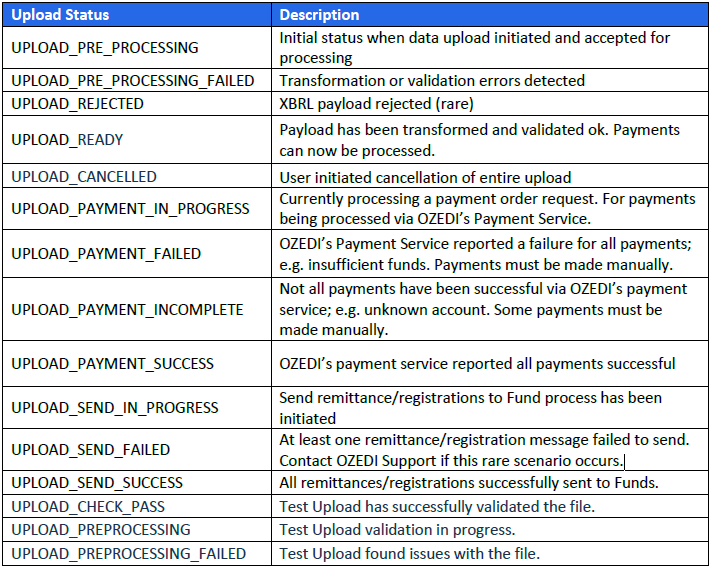
Log records are created for the following type codes and descriptions, which also serve as statuses within the Payday Super Processing program:
SAFRDY - File Generated
SAFUPL - File Uploaded
PAYREQ - Payment Requested
PAYCOM - Payment Completed
REMCOM - Remittance Sent
MACACT - Manual Proceed Actioned
UPLPEN - Upload Pending
UPLREJ - Upload Rejected
UPLFAL - Upload Failed
PAYPEN - Payment Pending
PAYINC - Payment Incomplete
PAYFAL - Payment Failed
PEMPEN - Remittance ending
REMFAL - Remittance Failed
GWYERR - Gateway Error
SYSERR - System Error
UPLCAN - Upload Cancelled
FUNRES - Fund Responses Available
When an error occurs, the ‘Response Text’ column identifies the issue(s), and the ‘Response Packet’ column provides additional details. Common Response Text examples include:
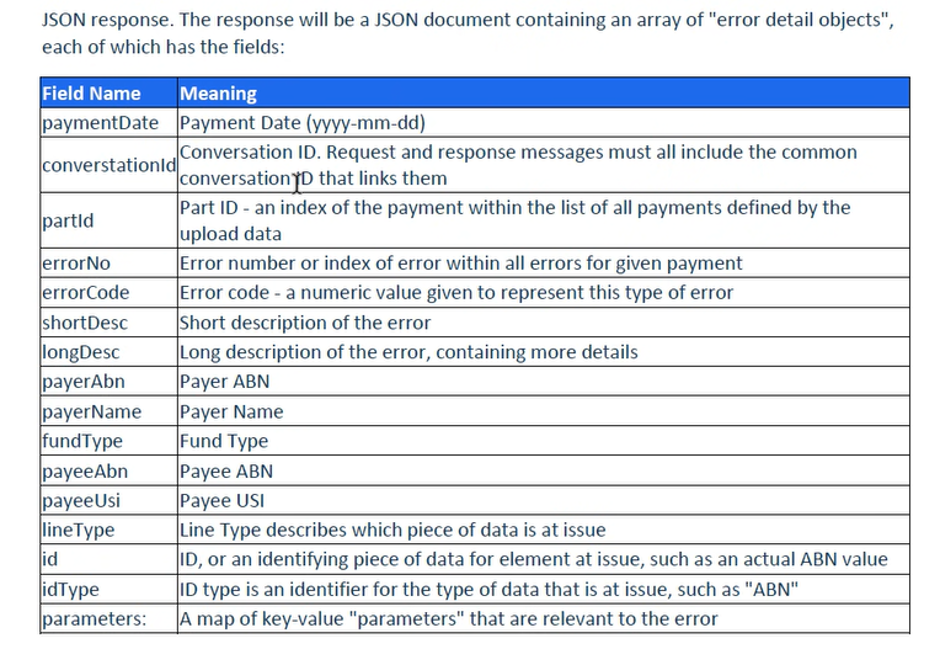
Each JSON response in the log includes the following fields as an array.
If you are unsure about a message in the log, contact TASS Customer Care for guidance.
Event Superfund Details Screen
The ‘Event Superfund Details’ screen can be accessed by clicking on a hyperlinked number in the ‘Num Fund’ column of the ‘Super Event List’.
This screen lists all Superannuation Funds included in the generated CSV file. It shows a breakdown of the funds and the number of employees linked to each in the following columns.
Use this screen to review your Super Event data before uploading your file and making a payment.
Grid Column
Description
Code
The ‘Code’ column displays the Superannuation Fund code from TASS.webPayroll HRM > Payroll > Setup Information > Superannuation Funds on the ‘Super Funds’ tab.
Fund Name
The ‘Fund Name’ column displays the Superannuation Fund Name from TASS.webPayroll HRM > Payroll > Setup Information > Superannuation Funds on the ‘Super Funds’ tab.
Fund USI
The ‘Fund USI’ column displays the Superannuation Fund USI from TASS.webPayroll HRM > Payroll > Setup Information > Superannuation Funds on the ‘Super Funds’ tab.
Fund ABN
The ‘Fund ABN’ column displays the Superannuation Fund ABN from TASS.webPayroll HRM > Payroll > Setup Information > Superannuation Funds on the ‘Super Funds’ tab.
Fund ID
The ‘Fund ID’ column displays the Superannuation Fund ID from TASS.webPayroll HRM > Payroll > Setup Information > Superannuation Funds on the ‘Super Funds’ tab.
Fund Total
The 'Fund Total' column shows the total Super Payment amount required for each super fund, calculated from the generated CSV file.
Num Emp
The ‘Num Emp’ column displays the number of employees associated with the fund payment, based on the data provided in the generated CSV file.
Click the hyperlink number in this column to open the ‘Event Employee Details’ screen.
The ‘Payment Reference Number’ column shows the payment reference number sent with the Remittance Advice after payment has been made.
Actions
No actions are currently available in the Actions column. This is a placeholder for a ‘View’ action to be added later, which will allow a more detailed breakdown.
Click the ‘Back’ icon at the top to return to the ‘Super Event List’.
Event Employee Details Screen
The ‘Event Employee Details’ screen can be accessed by clicking on a hyperlinked number in the ‘Num Fund’ column of the ‘Super Event List’, then clicking on a hyperlinked number in the ‘Num Emp’ column for a particular superfund of the ‘Event Superfund Details’ screen.
This screen lists each employee (Employee Code, Surname, First Name) receiving a Super Contribution to the selected fund in the selected Super Event, along with their defined Super Contribution Amount.
Use this screen to review your Super Event data before uploading your file and making a payment.
Grid Column
Description
Emp Code
The ‘Emp Code’ column shows the Employee Code from the Employee Record in TASS.webPayroll HRM > Payroll > Employee Information > Employees on the ‘General’ tab.
Surname
The ‘Surname’ column shows the Employee’s Surname from their Employee Record in TASS.webPayroll HRM > Payroll > Employee Information > Employees on the ‘General’ tab.
First Name
The ‘First Name’ column shows the Employee’s First Name from their Employee Record in TASS.webPayroll HRM > Payroll > Employee Information > Employees on the ‘General’ tab.
Super Contribution
The ‘Super Contribution’ column displays the total the employee will receive into the selected fund for this pay run, calculated from the generated CSV file.
Actions
No actions are currently available in the Actions column. This is a placeholder for a ‘View’ action to be added later, which will allow a more detailed breakdown
Follow this workflow to process Payday Super payments in TASS.web via the OZEDI API connection.
For details on Super Event statuses, available actions mentioned in the workflow below, as well as other statuses and actions that may appear whilst attempting to complete this workflow, see the 'Super Event List' section above.
If you receive error messages during the workflow, click ‘View Errors’ or review the ‘Log’ in the Actions column. If unsure about an error message, contact TASS Customer Care for guidance.
Completing the Pay Run Reset will create a new Super Event in the Payday Super Processing program with the ‘Payrun Reset’ status, and the ‘Awaiting STP' text displays in the Actions column.
The Super Event displays ‘Awaiting STP’ in the Action column of the Payday Super Processing program while processing the STP Pay Event and awaiting acceptance.
When the STP Pay Event status reaches ‘Accepted by ATO' or ‘Accepted by ATO with errors' status, the Super Event changes to 'STP Completed’ and the Action column in the Payday Super Processing program shows 'Ready to Generate’.
Proceed with Caution!
You should wait for STP ATO acceptance before progressing to the next stage. However, if ATO communication fails and you cannot wait any longer to process superannuation payments, you may use the ‘Proceed’ action to manually advance the workflow without waiting for acceptance.
3
STP Complete
Continue following the Pay Run Checklist and complete Step 18 in the Payday Super Processing program (this program).
After the ATO accepts the STP Pay Event or you have bypassed acceptance via the ‘Proceed’ action, the ‘Ready to Generate’ action becomes available in the Payday Super Processing program.
4
Ready to Generate
Click the ‘Ready to Generate' action in the Payday Super Processing program to generate the CSV file containing Super Contribution details. The file generation process uses the Super Alternative File Format (SAFF) Parameters defined in TASS.webPayroll HRM > Payroll > Listings & Report > Super Remittance File/Report.
5
File Generated
The Super Event displays ‘File Generated’ status when the CSV file has been generated, and the contribution data has been populated into the Super Event List.
Review your Superfund and Employee contribution totals in the Payday Super Processing program by clicking the hyperlinked number in the ‘Num Fund’ column of the ‘Super Event List’, and the hyperlinked number in the ‘Num Emp’ column of the 'Event Employee Details' screen.
6
Upload SAFF
When you are happy with your Super Event data, click the ‘Upload SAFF’ action to upload your generated CSV file data to OZEDI via the Payday Super API Gateway. The 'Upload Pending’ status appears while the upload is processing.
Click the ‘Refresh’ icon to reload the page and update the status.
If OZEDI detects errors in your CSV file, the 'View Errors' action will appear, allowing you to review and correct them before regenerating, checking, and uploading the file again.
7
File Uploaded
After the CSV file is successfully uploaded to OZEDI, the Super Event shows ‘File Uploaded’ status, and the ‘Request Payment Order’ action becomes available.
8
Request Payment Order
Click the ‘Request Payment Order’ in the Actions column to process the contribution payment using your school’s nominated Payment Method.
If ‘PayTo Agreement’ is your school's nominated payment method, an API call will prompt OZEDI to deduct the Super Payment from your school's nominated bank account via the Zepto PayTo Agreement (OZEDI’s New Payments Platform Partner). The payment process will be completed quickly.
If ‘Transfer’ is your school’s nominated payment method, select the ‘View Payment Details’ action to access OZEDI’s banking details and transfer the total Super Payment manually. Afterwards, click the ‘Acknowledge Payment Completed’ action to prompt OZEDI to verify receipt.
The Super Event status will update to ‘Payment Completed' once this is complete.
Click the ‘Refresh’ icon to reload the page and update the status.
9
Send Remittance
After completing your payment, click the ‘Send Remittance’ action to notify OZEDI to distribute payments to the relevant superfunds and send the remittance advice for the Super Event. The Super Event status will then update to ‘Remittance Sent’.
10
Remittance Sent
When the Super Event status is 'Remittance Sent,' the TASS.web Payday Super Workflows are complete, but OZEDI, banking, and superfund processes may still be ongoing.
Monitor your emails for correspondence from OZEDI about the Payday Super Event submission, payment, and distribution to superfunds.
Examples
Your bank may contact you if they detect an issue.
If OZEDI finds discrepancies during or after payment processing, the 'Payroll Contact Email' in the Payday Super Gateway will receive an email from noreply@ozedi.com.au.
An error message may also be recorded in the ‘Log’ accessible from the Actions column.
If OZEDI receives correspondence from any superfund regarding your Super Event, the status 'Fund Responses Available' appears. You can click the 'View Responses' action for details. Complete any required adjustments before your next Pay Run and Super Event.
❗
Important!
If errors occur, you must correct them and submit an 'Update Payday Super Event' promptly to meet the 7-business-day Payday Super deadline.