
v01.2026.06.200
This page documents the official TASS Release Notes for software version v01.2026.06.200, including new features and corrections.
Use this page to review all features, enhancements, and fixes included in this release.

The Friendly Release allows ‘Friendly Schools’ to trial new features and provide feedback before the General Release. Occasionally, additional updates and fixes are included between these two release dates. A caret symbol (^) signifies features that are only available in the General Release version.
Major Items
Module | Details |
|---|---|
Payday Superannuation API Implementation ^ | A new ‘Payday Super Gateway' is available to facilitate API connections with OZEDI, which are necessary to enable the Payday Super Processing Workflow. ^ Refer to the 'Payday Super Gateways API' article on the TASS Knowledge Base for more information. The Payday Super features are behind a feature flag in the Friendly Release. To join the test group and gain early access, contact TASS Customer Care. An image of the new ‘Payday Super Gateways’ option on the ‘External APIs’ tab of the TASS.web API Gateway Maintenance program: 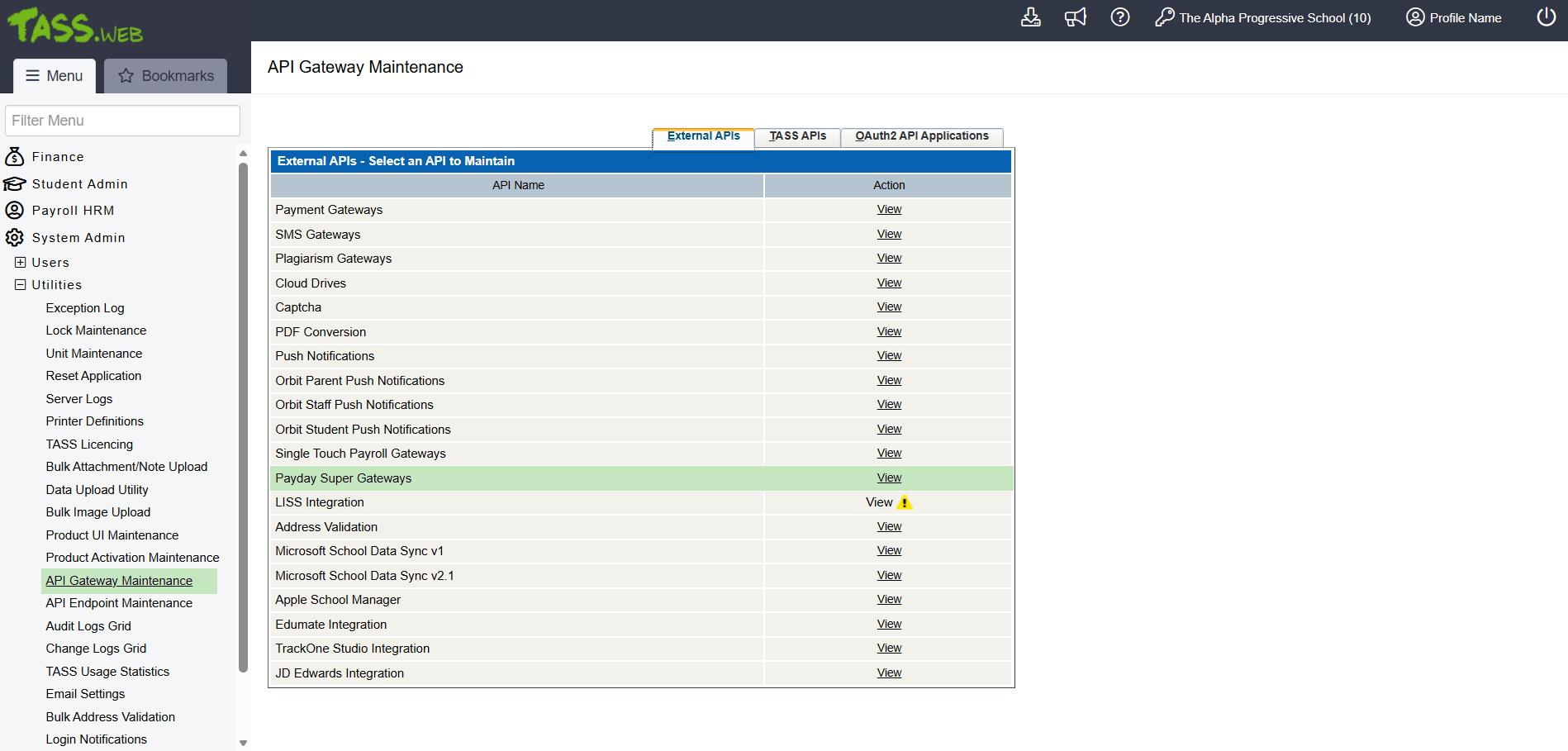 An image of the ‘Payday Super Gateways’ screen in the TASS.web API Gateway Maintenance program: 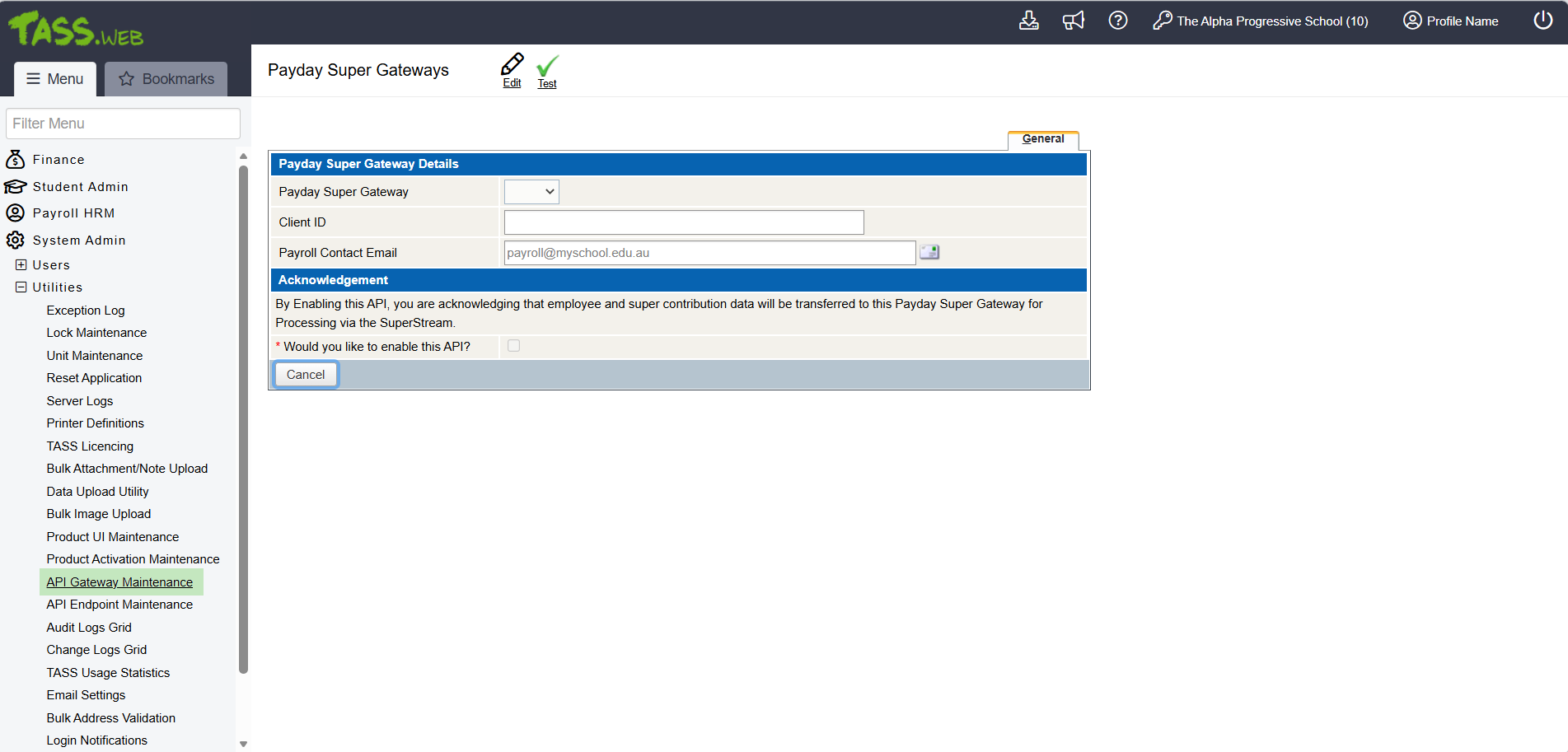 |
Payday Superannuation Workflow Preparations ^ | A new Payday Super Processing program has been introduced to help schools comply with the ATO’s new Payday Super requirements by ensuring super contributions are received by the employee's super fund within 7 business days of payday. This program uses a secure API connection to OZEDI, a SuperStream-certified Payday Super Gateway Provider, to exchange data and integrate with the existing TASS.web Pay Run workflows. Payday Super Processing can be conducted after the Single Touch Payroll Event has been accepted by the ATO. From here, users can generate and review Super Event details for each pay run, upload a remittance file to OZEDI, and make a payment to OZEDI, who will then distribute contributions to the relevant Superannuation Funds and member accounts. Schools can transfer funds to OZEDI either via manual bank transfer or through a PayTo Agreement, under which OZEDI automatically deducts the contribution amount from the school's nominated bank account, saving time and reducing manual data entry.^ Refer to the ‘Setting up Payday Super’ and ‘Payday Super Processing’ articles on the TASS Knowledge Base for more information. The Payday Super features are behind a feature flag in the Friendly Release. To join the test group and gain early access, contact TASS Customer Care. An image of the TASS.web Payday Super Processing program: 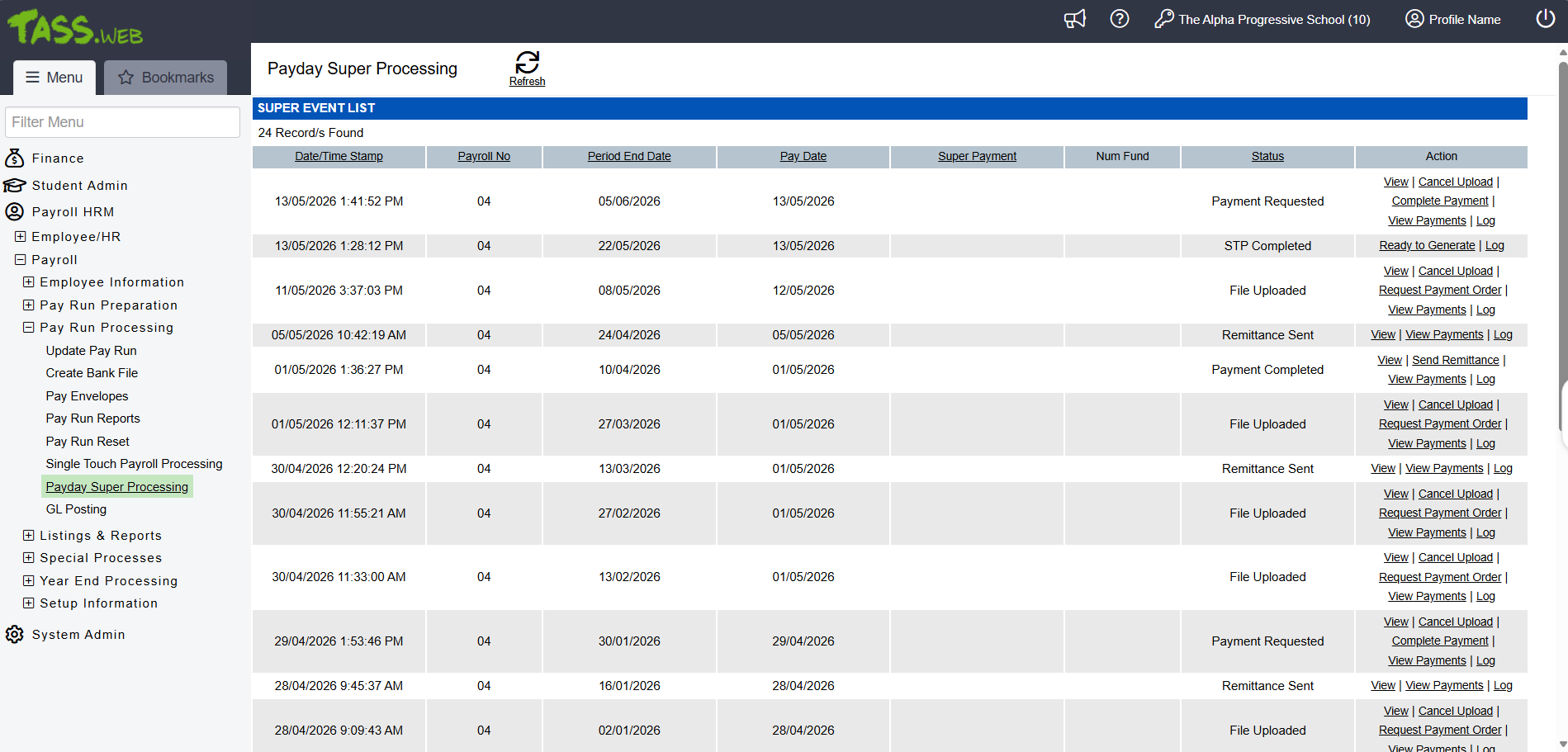 This image is from the TASS Test Instance. A real instance would not display as many variables in Status and Actions. |
Payday Super - New Superannuation Parameter Fields ^ | The TASS.web 'Superannuation Funds' program now includes an 'Enable Payday Super' checkbox to activate the Payday Super Processing Workflow, a 'Payment Method' field to select your school's preferred payment method for Superannuation Contribution payments when using this feature, and additional fields to support the 'PayTo Agreement' payment method. The parameters for the Super Alternative File Format (SAFF) in the ‘Super Remittance File/Report’ program have also been updated to align with the selected Payday Super settings. ^ Refer to the ‘Setting up Payday Super’, 'Superannuation Funds' and 'Super Remittance File/Report' articles on the TASS Knowledge Base for more information. The Payday Super features are behind a feature flag in the Friendly Release. To join the test group and gain early access, contact TASS Customer Care. An image of the new Payday Super fields on the ‘Super Parameters’ tab of the TASS.web Superannuation Funds program: 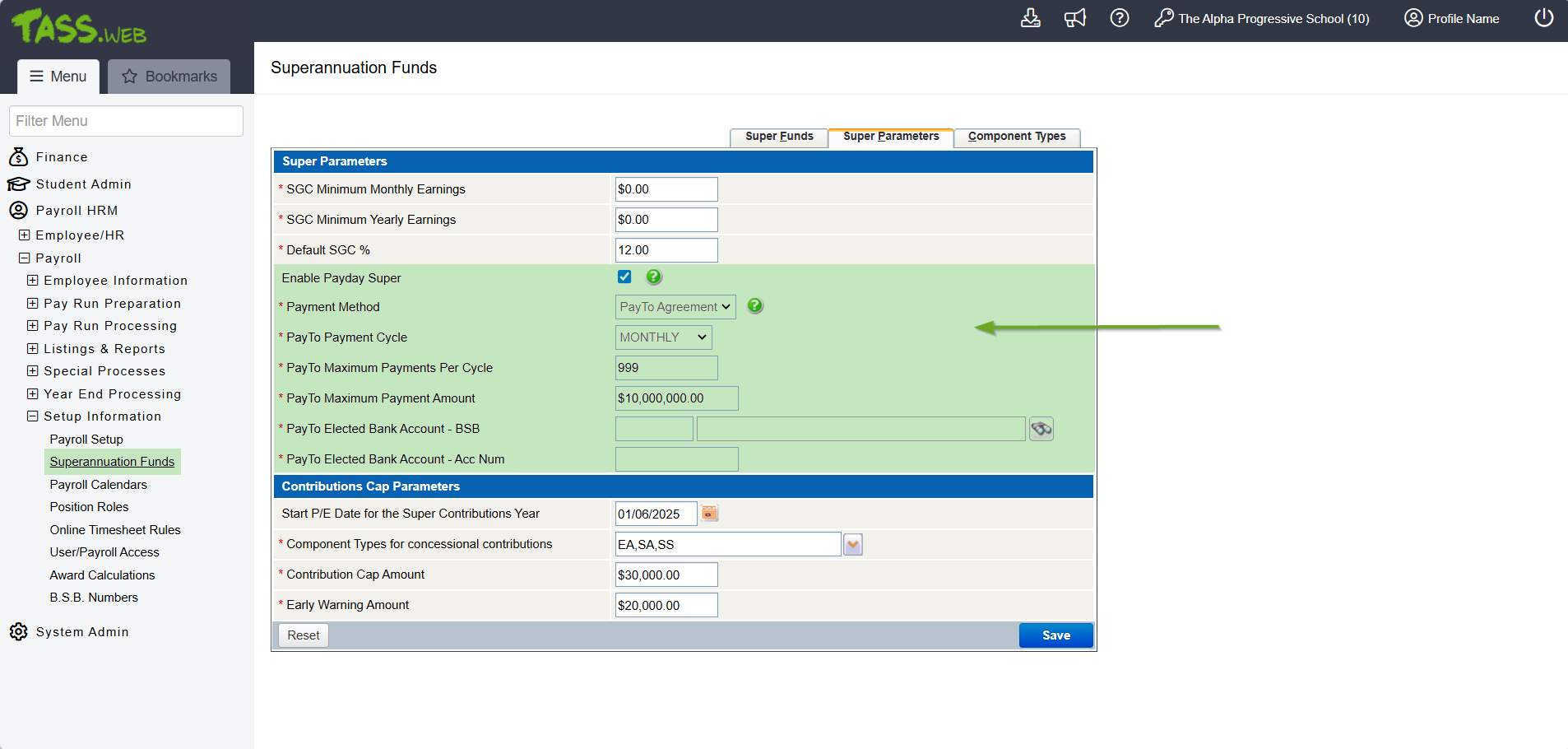 |
Implement OTE Reporting for STP Events with QE Transition Support | The Single Touch Payroll Processing program has been updated to support the Australian Taxation Office's shift from Ordinary Time Earnings (OTE) to Qualifying Earnings (QE) for Superannuation Contribution payments starting 1 July 2026. The program now detects which codes to use based on the STP Event date. When QE is applicable, a new 'Qualifying Earnings' field appears on the 'Employee Event Details - Pay Event' and 'Employee Event Details - Update Event' screens, displaying the total Qualified Earnings for the employee for the selected payroll event. Refer to the 'Single Touch Payroll Processing' article on the TASS Knowledge Base for more information. An image of the new ‘Qualified Earnings’ field on the Employee Event Details screen of the TASS.web Single Touch Payroll Processing program: 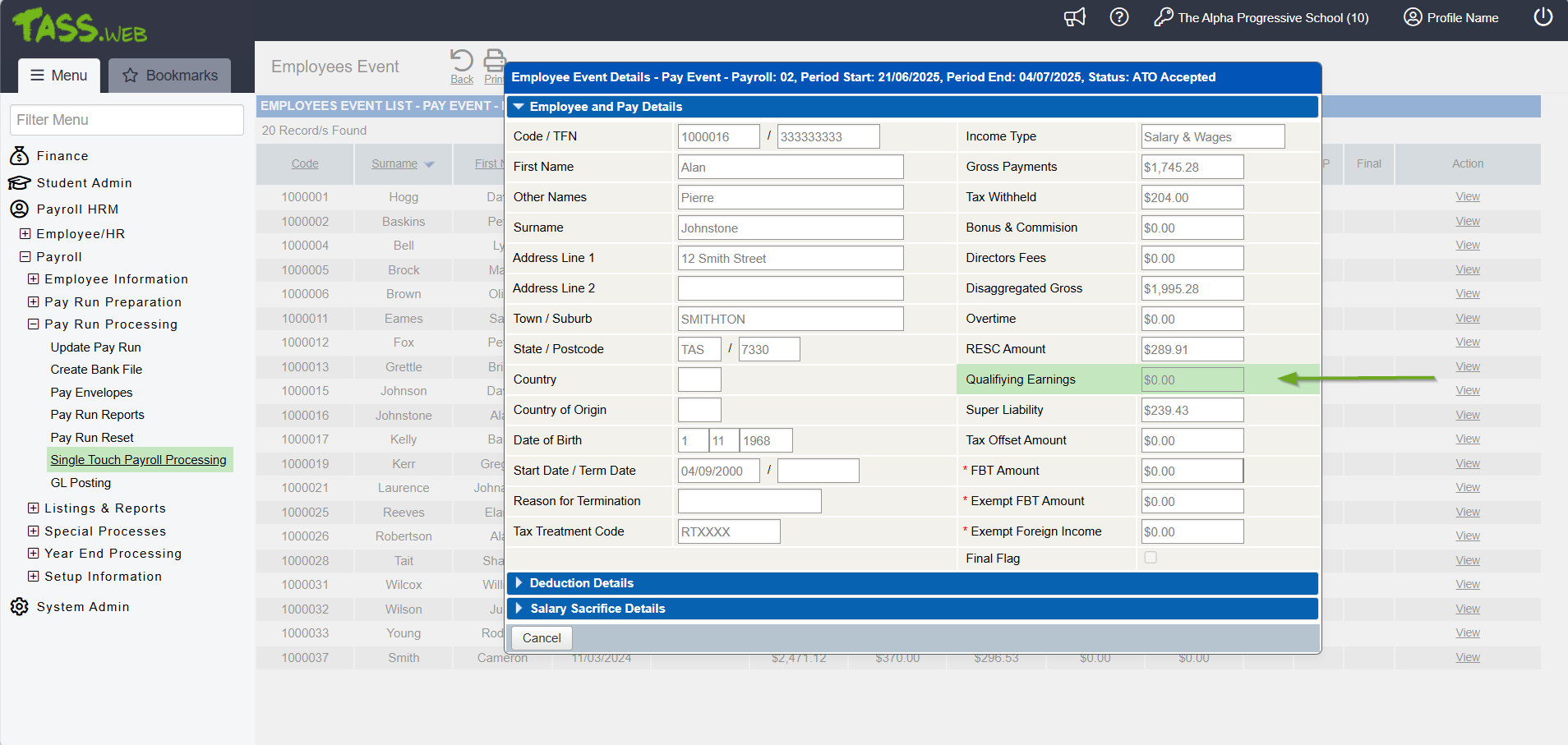 |
Ability to Split EP Payment run in Bank Accounts Dashboard | The TASS.web General Ledger > Bank Accounts Dashboard now supports splitting Paid/Debit Cash Book transactions. The 'Split' action is available on the 'Search Cash Book Transactions' screen for Electronic Payments (EP) processed through the Accounts Payable module. This feature lets users split Electronic Payment (EP) debits, just as they can currently split credits. It includes a dedicated screen for managing split payments, with a warning that the action is irreversible until confirmed and saved. See the ‘Bank Accounts Dashboard’ article on the TASS Knowledge Base for details. An image of the 'Split' link that is now available for Electronic Payments when reconciling accounts from the TASS.web Bank Accounts Dashboard: 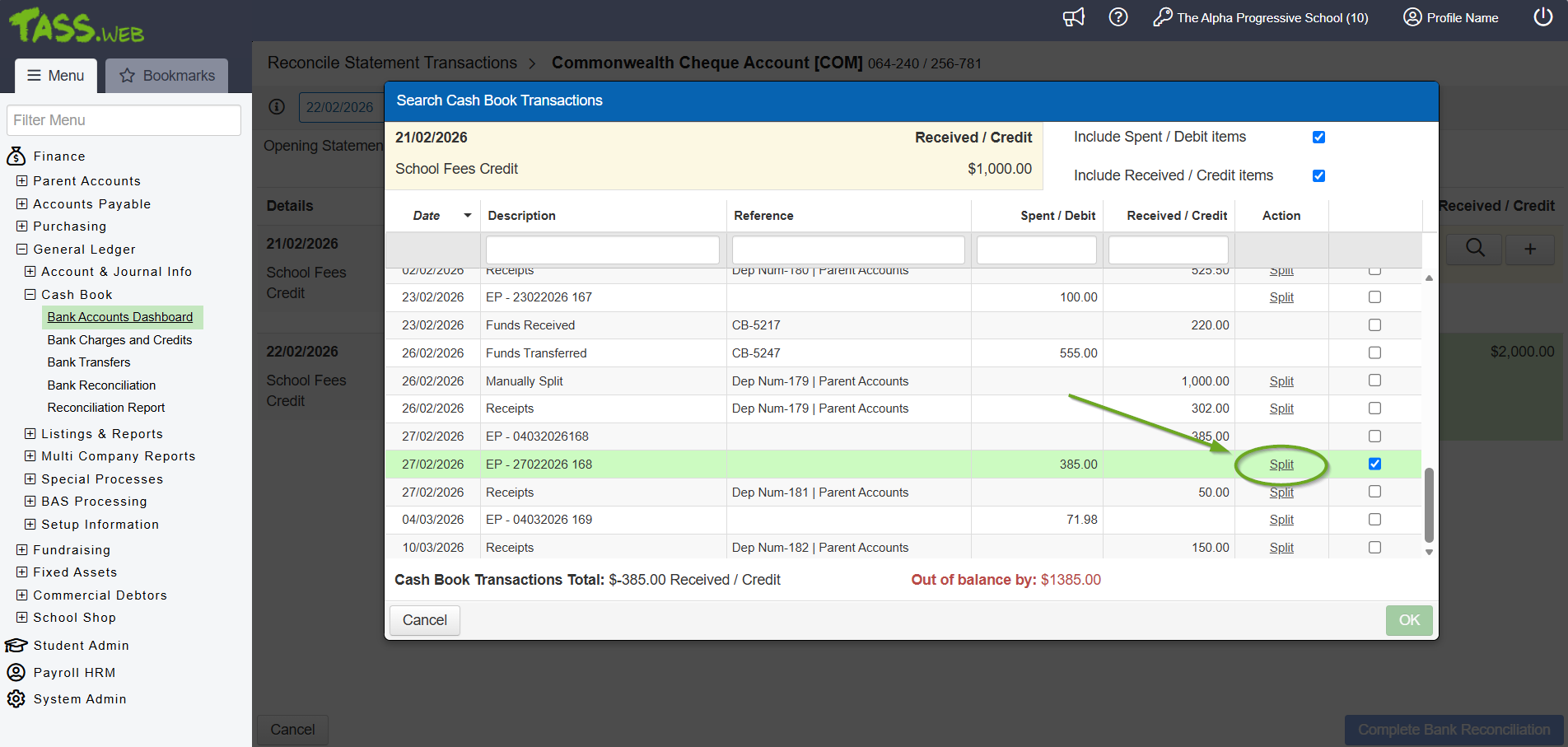 An image of the ‘Split Payment’ screen that can be accessed by clicking the Split link: 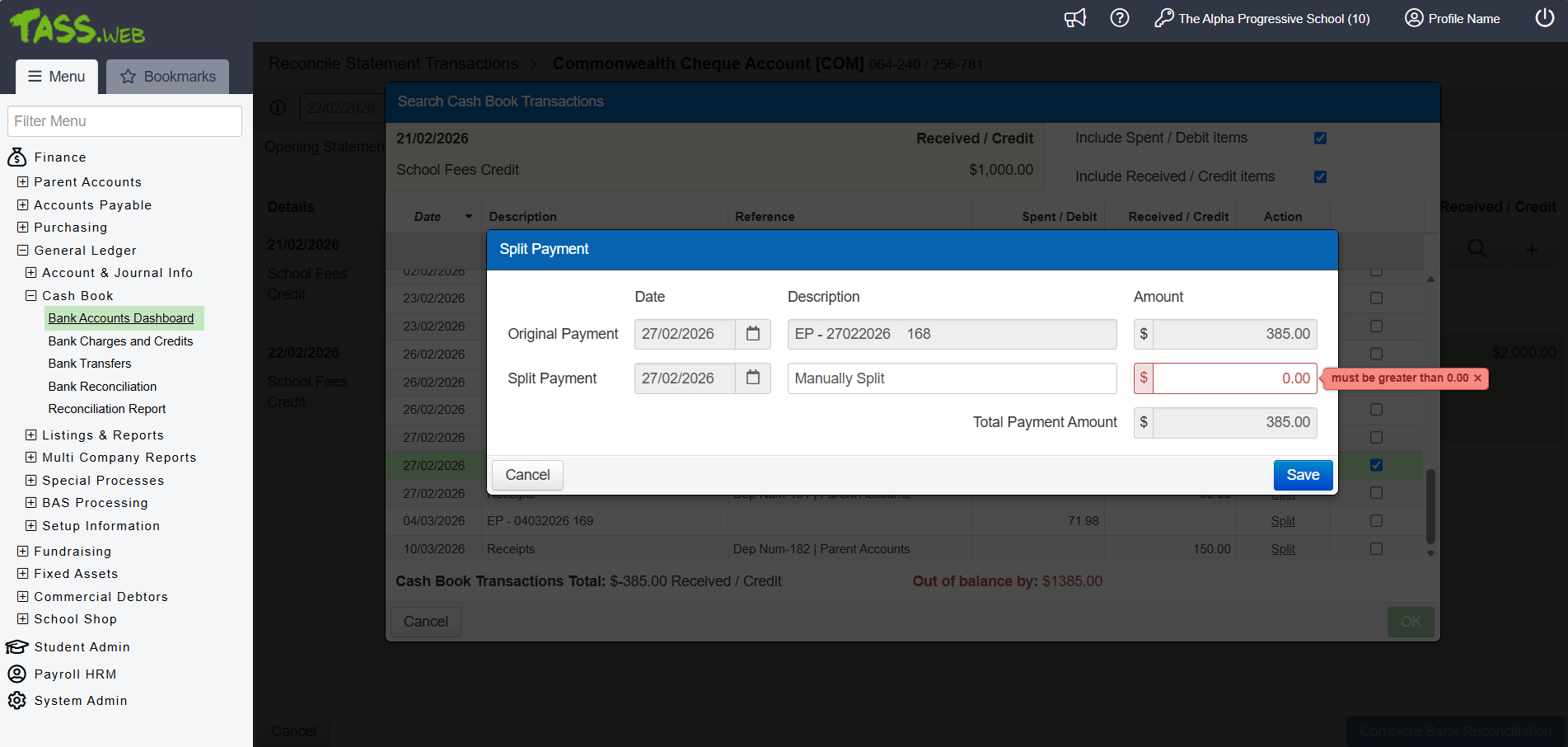 |
Enable Rounding Rules to be used for calculating Activity Total Scores | Rounding rules can now be applied to Activity Total Score calculations in both the Activity Planner and the Markbook to achieve decimal-place score calculations. Additional fields for 'Rounding Rule' and 'Rounding Rule Details' have been added to the Activity Total Score Calculation Rule screens in Staff Kiosk Activity Planner > Activity > Hamburger Menu > Activity Total Score Calculation Rule, and in Staff Kiosk Markbook > Activity Assessment > ATS Column > Hamburger Menu > Calculation Rules. A new 'ATS Default (_ATSDF)' rounding rule has also been introduced. This rule is automatically applied to existing activities with ATS calculations enabled, ensuring that previous rounding conventions are preserved and reflected after this feature was launched. Refer to the ‘Rounding Rules’, 'Markbook - Enter or Calculate Activity Results' and 'Activity Planner - Activity Assessment Screen' articles on the TASS Knowledge Base for more information. An image of the ATS Default Rounding Rule in the Staff Kiosk Assessment Setup program: 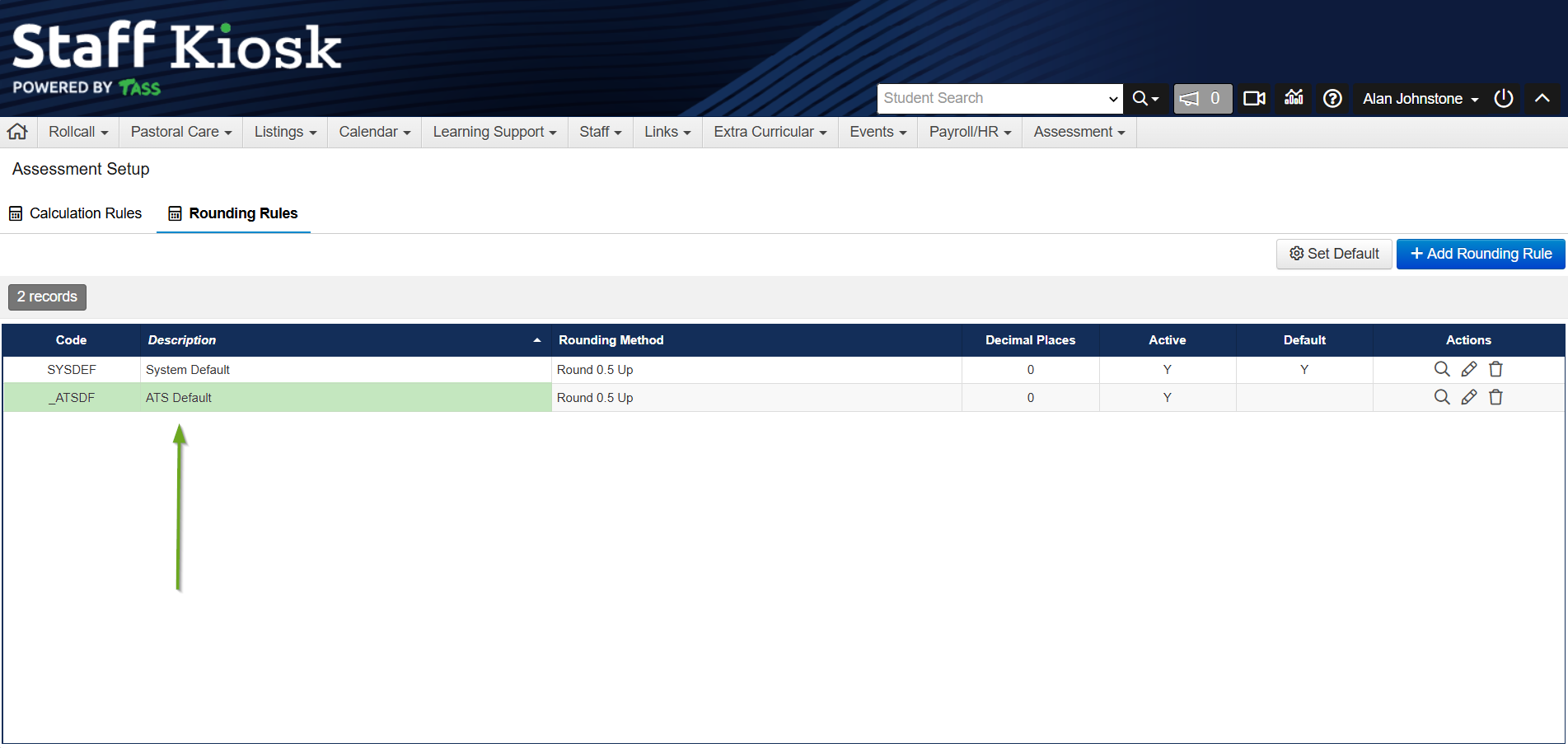 An image of the new Rounding Rule selection field for Activity Total Scores in Staff Kiosk Assessment > Markbook > Activity Assessment: 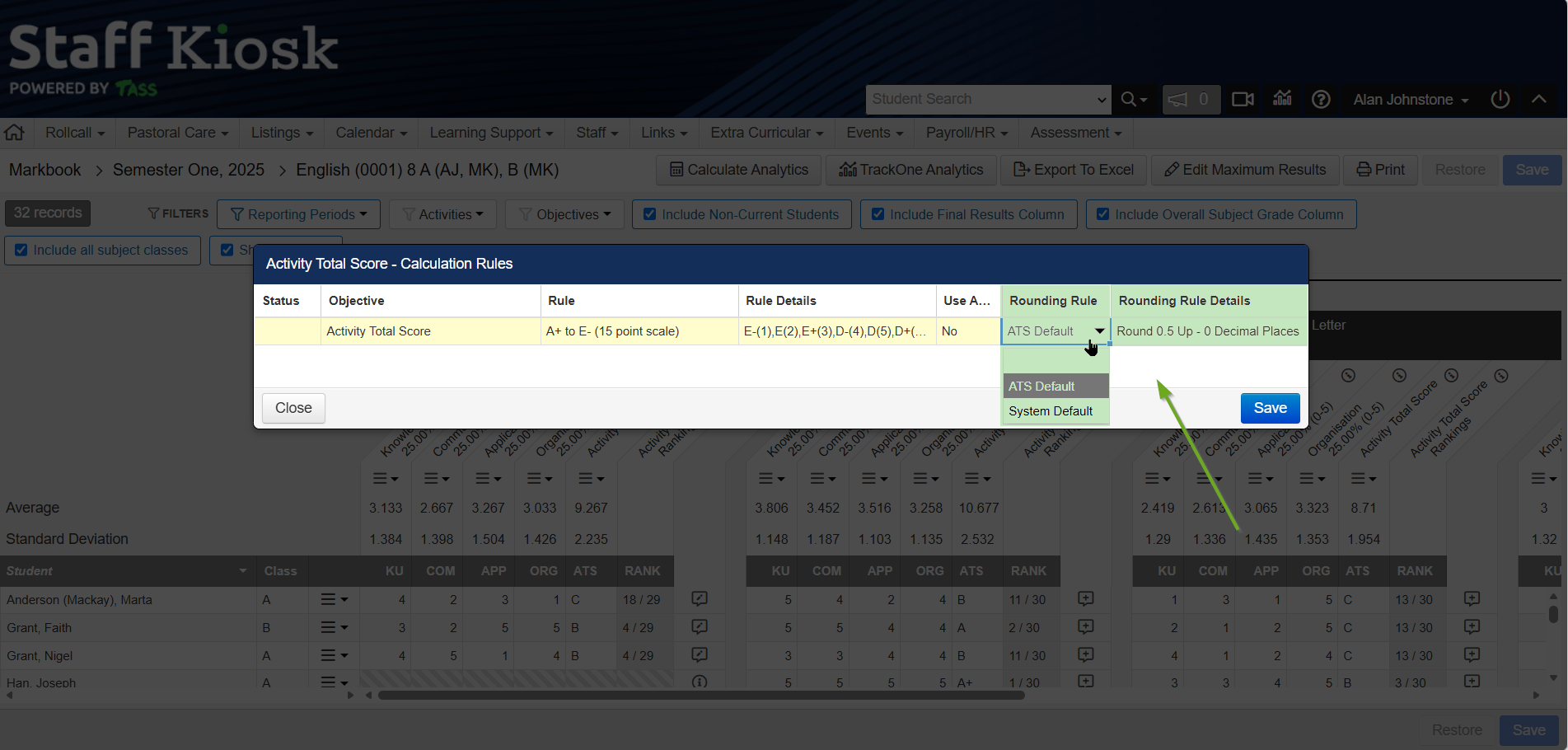 An image of the new Rounding Rule selection field for Activity Total Scores in Staff Kiosk Assessment > Activity Planner > Activity Assessment: 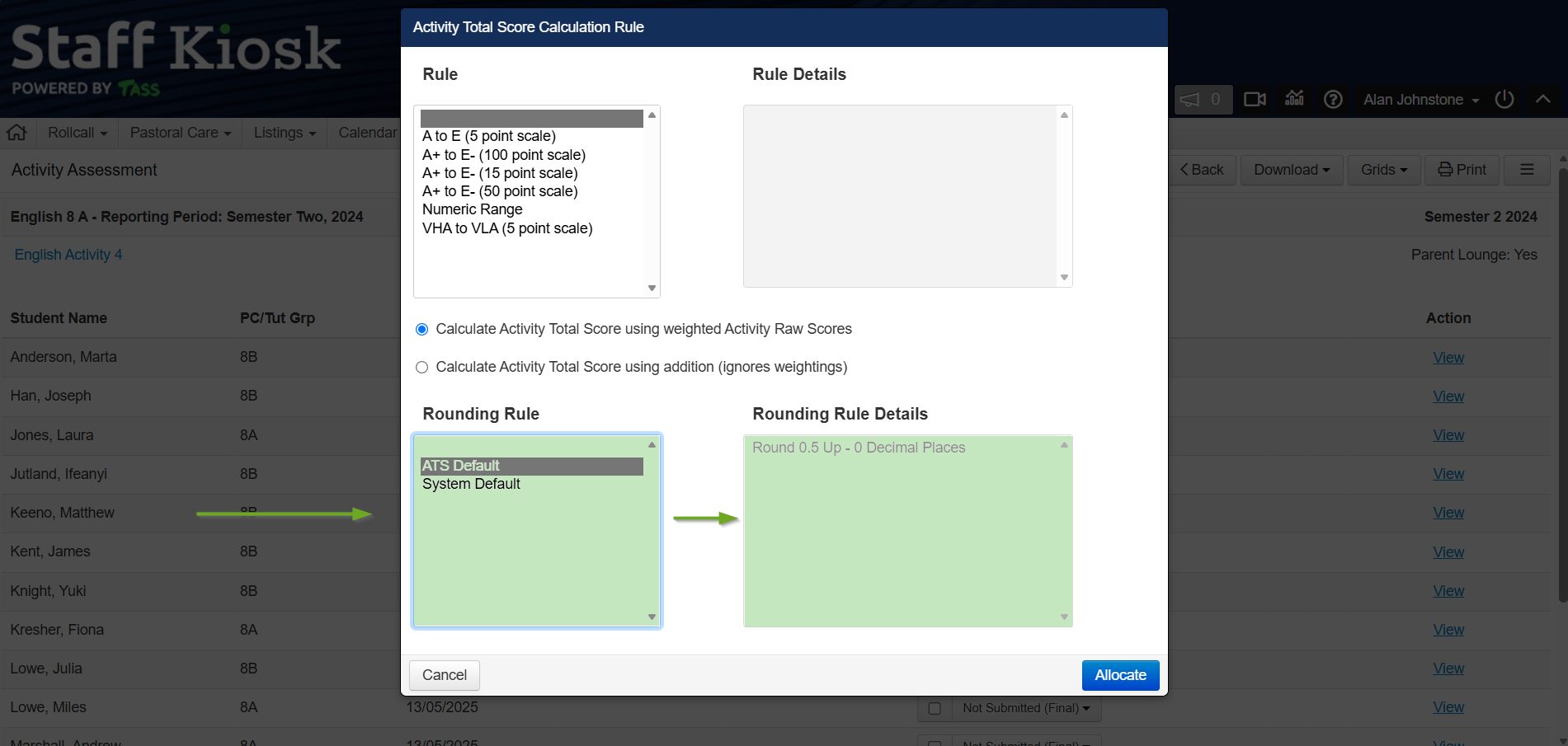 |
New API Endpoints for Accounts Payable and Purchasing | New TASS REST API endpoints have been introduced to enable API Endpoint Users to create, retrieve, update, and delete Purchasing and Accounts Payable data from TASS.web Finance > Purchasing and TASS.web Finance > Accounts Payable via the API connection. Refer to https://api.developer.tassweb.com.au/ and select version '2026.06' for more information. An image of the new Accounts Payable API endpoints in the TASS.web API Endpoint Maintenance program: 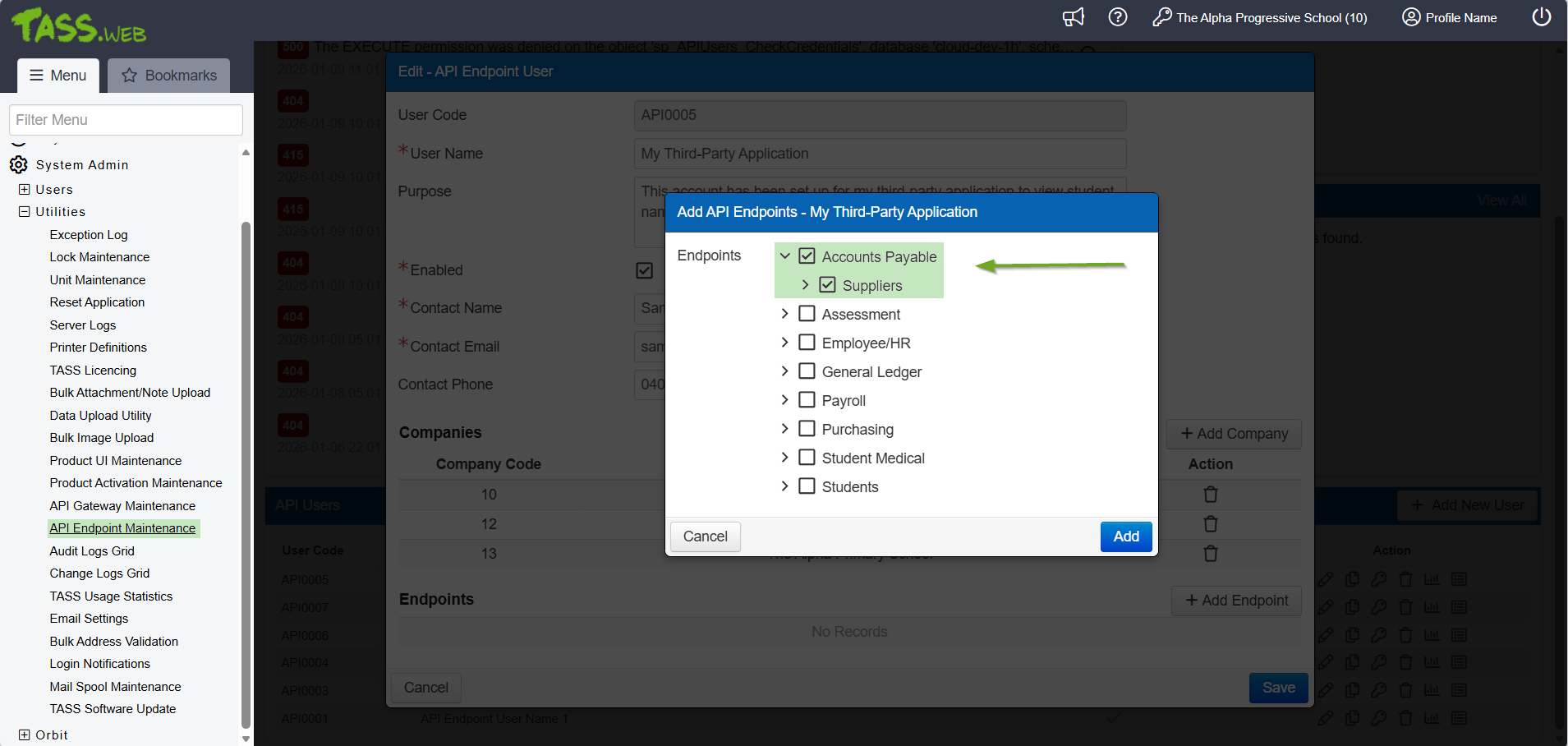 An image of the new Purchasing API endpoints in the TASS.web API Endpoint Maintenance program: 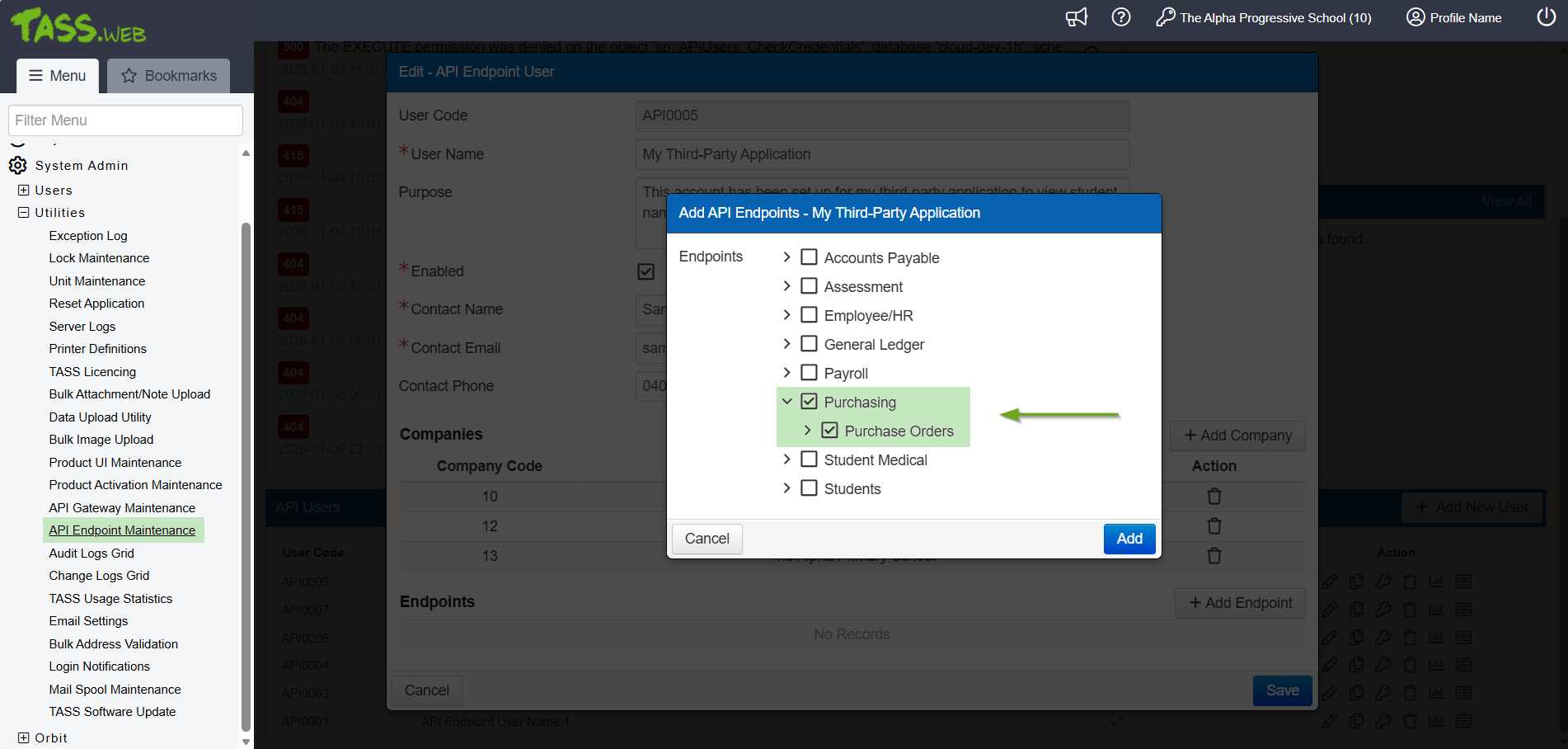 |

What's New?
Module | Menu | Details | Customer | Reference |
|---|---|---|---|---|
Parent Lounge > Accounts & Payments | Events and Payments | Enhancement to Events and Payments > Proceed to Payment. When a partial payment has already been completed, the Payment Details screen displays 'Paid $X.XX' to indicate the amount already paid. The per-Event Subtotal now also excludes paid items and is no longer displayed in bold font. | MIS01 | TASS-11874 |
Staff Kiosk > Assessment | Activity Planner | Enhancement to Activity Planner > Activity > Assess. The 'Calculate' button has been updated to use the configured Rounding Rules defined for the Activity in Activity Planner or Markbook. When decimal places are specified for the Rounding Rule, the manual data input fields are restricted to the number of decimal places specified by the rule. | MIS01 | TASS-11791 |
Staff Kiosk > Assessment | Activity Planner | Enhancement to Activity Planner > Activity > Grids > Activity Assessment Grid. The 'Calculate Activity Total Score' button has been updated to use the configured Rounding Rules defined for the Activity in Activity Planner or Markbook. When decimal places are specified for the Rounding Rule, the manual data input fields are restricted to the number of decimal places specified by the rule. | MIS01 | TASS-11790 |
Staff Kiosk > Assessment | Activity Planner | Enhancement to Activity Planner > Activity > Hamburger Menu > Activity Total Score Calc Rule. Additional sections for 'Rounding Rule' and 'Rounding Rule Details' have been added to the 'Activity Total Score Calculation Rule' screen to configure Rounding Rules for Activity Total Scores. Existing Activities using Activity Total Score calculations will default to the 'ATS Default' Rounding Rule, which reflects and preserves the previous rounding conventions used before this feature was released. | MIS01 | TASS-11789 |
Staff Kiosk > Assessment | Activity Planner | Enhancement to Activity Planner > Activity > Hamburger Menu > Edit. When a change is made to the 'Overwrite Max. Result' field in Markbook Activity Assessment, the change is also applied to the 'Edit Assigned Activity' screen in Activity Planner to ensure the same weightings are used for Activities, regardless of the program being used. | MIS01 | TASS-11752 |
Staff Kiosk > Assessment | Markbook Enter Results and Comments | Enhancement to Activity Assessment > ATS column > Hamburger Menu > Calculate Results. Activity Total Score calculations have been updated to apply the Rounding Rules defined for the Activity in Activity Planner or Markbook. | MIS01 | TASS-11761 |
Staff Kiosk > Assessment | Markbook Enter Results and Comments | Enhancement to Activity Assessment > ATS column > Hamburger Menu > Calculation Rules. Additional columns for 'Rounding Rule' and 'Rounding Rule Details' have been added to the 'Activity Total Score - Calculation Rules' screen to configure Rounding Rules for Activity Total Scores. Existing Activities using Activity Total Score calculations will default to the 'ATS Default' Rounding Rule, which reflects and preserves the previous rounding conventions used before this feature was released. | MIS01 | TASS-11754 |
Staff Kiosk > Assessment | Markbook Enter Results and Comments | Enhancement to Activity Assessment > ATS column. When a Rounding Rule with decimal places is applied, the manual data entry fields in the Activity Total Score column are limited to the number of decimal places defined by the rule. | MIS01 | TASS-11760 |
Staff Kiosk > Assessment TASS.web > Academic Reporting | Assessment Setup | Enhancement to the Assessment Setup > Rounding Rules tab. A new 'ATS Default (_ATSDF)' Rounding Rule has been introduced and is automatically applied to existing Activities with ATS calculations enabled to reflect and preserve the previous rounding conventions used before this feature was released. | MIS01 | TASS-11753 |
Staff Kiosk > Extra Curricular TASS.web > Extra Curricular | Extra Curricular Groups | Enhancement to Extra Curricular Groups > Hamburger Menu > Students & Bulk Assign. When an Activity Group Member is deleted, their Extra Curricular Sign Up information is saved in a database table, allowing for future access to sign-up and payment details. | MIS01 | TASS-11690 |
Staff Kiosk > Home Page | Home Page | Enhancement to Staff Kiosk Home Page. The 'Invoice Approvals to Action' section includes a 'See All' button that links to the 'Invoice Approvals' program. | MIS01 | TASS-11589 |
TASS.web > General Ledger | Bank Accounts Dashboard | Enhancement to Bank Accounts Dashboard > Hamburger Menu > Reconcile Statement Transactions > Search Transactions icon > Search Cash Book Transactions screen > Split > Save. An extra 'Save' button appears on the confirmation message screen. It is intended to be clicked by the user to confirm they've read the warning and understand the action before creating the new split payment. | MIS01 | TASS-8846 |
TASS.web > General Ledger | Bank Accounts Dashboard | Enhancement to Bank Accounts Dashboard > Hamburger Menu > Reconcile Statement Transactions > Search Transactions icon > Search Cash Book Transactions screen > Split. When 'Save' is selected on the Split Payment screen, a confirmation message appears, warning users that "This Action is irreversible. Splitting payments cannot be undone. Please review all details below carefully before clicking Save." | MIS01 | TASS-8845 |
TASS.web > General Ledger | Bank Accounts Dashboard | Enhancement to Bank Accounts Dashboard > Hamburger Menu > Reconcile Statement Transactions > Search Transactions icon > Search Cash Book Transactions screen > Split. The 'Split Payment' screen allows Electronic Payment Debits to be split by amount. The screen displays the original payment details as read-only and lets users enter a split amount (greater than '0.00' and less than the total payment amount) and a description. The default description for a split amount is 'Manually Split', but this can be edited to the user's preferred description. | MIS01 | TASS-8844 |
TASS.web > General Ledger | Bank Accounts Dashboard | Enhancement to Bank Accounts Dashboard > Hamburger Menu > Reconcile Statement Transactions > Search Transactions icon > Search Cash Book Transactions screen. A new 'Split' action is available for Paid/Debit Electronic Payments from the Accounts Payable module. Clicking 'Split' launches the 'Split Payment' screen. | MIS01 | TASS-8843 |
TASS.web > Parent Accounts | Electronic Receipt Processing | Enhancement to Electronic Receipt Processing. A warning icon appears in the '!' column when Extra Curricular receipts mismatch with sign-up totals. In these circumstances, the hover-over message displays "Mismatch detected: the receipt amount does not match the expected Extra Curricular signup total. Please edit the receipt to correct the distribution before banking or contact support to investigate". | HUN01 | TASS-11692 |
TASS.web > Payroll TASS.web > Employee/HR | Employees | Enhancement to the Employee Record > Super tab > Superannuation Details Grid. A new 'Verification' column has been added to display the employee's SuperStream Member Verification Request (MVR) status. Orange dot = Unverified, Orange dot = Pending, Green dot = Verified, Red dot = Invalid. Statuses associated with MVRs display the request date in brackets. ^ | MIS01 | TASS-11988 |
TASS.web > Payroll TASS.web > Employee/HR | Employees | Enhancement to the Employee Record > Super tab > Print > Employee Super Fund Details Listing. A new 'Include Member Verification Status' checkbox has been added. When selected, the listing includes the selected Employee's SuperStream Member Verification Request (MVR) status details. ^ | MIS01 | TASS-12038 |
TASS.web > Payroll TASS.web > Employee/HR | Employees | Enhancement to Employee Records > Super tab > Add/Edit > Employee Super Fund Details. A new database table has been added to track API requests and responses for SuperStream Member Verification Requests (MVRs). ^ | MIS01 | TASS-11987 |
TASS.web > Payroll TASS.web > Employee/HR | Employees | Enhancement to Employee Records > Super tab > Add/Edit > Employee Super Fund Details. Additional database columns have been added to track superannuation fund membership verification details and to support the SuperStream Member Verification Request (MVR) workflow. ^ | MIS01 | TASS-11986 |
TASS.web > Payroll TASS.web > Employee/HR | Employees | Enhancement to the Employee Record > Super tab > Add/Edit > Employee Super Fund Details. A new master midnight scheduled task reviews pending SuperStream Member Verification Requests (MVRs) and updates their status to 'Verified', 'Invalid', or 'Pending' on the Employee Record > Super tab. ^ | MIS01 | TASS-12205 |
TASS.web > Payroll TASS.web > Employee/HR | Employees | Enhancement to the Employee Record > Super tab > Add/Edit > Employee Super Fund Details. Clicking the 'Save and Submit' button transmits the Employee's Super Details through an API to OZEDI, where they are validated against the daily-updated SuperStream data. ^ | MIS01 | TASS-11992 |
TASS.web > Payroll TASS.web > Employee/HR | Employees | Enhancement to the Employee Record > Super tab > Add/Edit > Employee Super Fund Details. The 'Fund Verification Status' field appears when the Payday Super Processing Workflow is enabled. It shows the status of the employee's SuperStream Member Verification Request (MVR). Orange dot = Unverified, Orange dot = Pending, Green dot = Verified, Red dot = Invalid. Statuses associated with MVRs display the request date in brackets. ^ | MIS01 | TASS-11989 |
TASS.web > Payroll TASS.web > Employee/HR | Employees | Enhancement to the Employee Record > Super tab > Add/Edit > Employee Super Fund Details. The 'Save and Submit' button appears when the Payday Super Processing Workflow is enabled, and the Employee's SuperStream Member Verification Request (MVR) status is either ‘Unverified’ or ‘Invalid'. ^ | MIS01 | TASS-11989 |
TASS.web > Payroll TASS.web > Employee/HR | Employees | Enhancement to the Employee Record > Super tab > Add/Edit > Employee Super Fund Details. The 'View' action link appears next to the ‘Fund Verification Status’ field when a Member Verification response is received. Clicking the link opens the 'Member Verification Response' screen, which displays additional information about the status. ^ | MIS01 | TASS-12345 |
TASS.web > Payroll TASS.web > Employee/HR | Employees | Enhancement to the Employee Record > Super tab > Add/Edit > Employee Super Fund Details. When an Employee's Superannuation Fund Member Number is updated, the 'Fund Verification Status' field is reset to 'Unverified' to indicate that the new details have not yet been verified. ^ | MIS01 | TASS-11990 |
TASS.web > Payroll TASS.web > Employee/HR | Employees | Enhancement to the Employee Record > Super tab > Delete > Employee Super Fund Details. When an Employee's Superannuation Fund is deleted, the associated SuperStream Member Verification Requests (MVR) movement log entries are automatically deleted. ^ | MIS01 | TASS-11993 |
TASS.web > Payroll | Payday Super Processing | Enhancement to Payday Super Processing. A new 'Payday Super Processing' program has been added to the TASS.web Payroll HRM > Payroll > Pay Run Processing menu. ^ | MIS01 | TASS-9981 |
TASS.web > Payroll | Payday Super Processing | Enhancement to Payday Super Processing > Super Event List. The 'Super Event List' summarises Payday Super Events for each payrun, with columns for Date/Time Stamp, Payroll No, Period End Date, Pay Date, Super Payment, Num Fund, Status and Actions. ^ | MIS01 | TASS-9982 |
TASS.web > Payroll | Payday Super Processing | Enhancement to Payday Super Processing > Super Event List. The 'Super Event List' displays all incomplete Payday Super Events and Payday Super Events with 'STP Completed' status created within the past 60 days. ^ | MIS01 | TASS-11562 |
TASS.web > Payroll | Payday Super Processing | Enhancement to Payday Super Processing > Super Event List. On page load, the list summarises the Super Event data. Clicking the hyperlink in the 'Num Fund' column loads and generates the SAFF file details for the selected Payday Super Event. ^ | MIS01 | TASS-12351 |
TASS.web > Payroll | Payday Super Processing | Enhancement to Payday Super Processing > Super Event List. The 'Refresh' icon at the top of the screen lets users reload the page with updated information. ^ | MIS01 | TASS-12119 |
TASS.web > Payroll | Payday Super Processing | Enhancement to Payday Super Processing > Super Event List > Actions > Cancel Upload. The 'Cancel Upload' action becomes available after selecting the 'Upload SAFF' action. Clicking this action deletes the generated SAFF file and employee superannuation contribution data, and returns the Super Event to ‘STP Completed’ status. ^ | MIS01 | TASS-11784 |
TASS.web > Payroll | Payday Super Processing | Enhancement to Payday Super Processing > Super Event List > Actions > Cancel Upload. The 'Cancel Upload' action becomes available after selecting the 'Request Payment Order' action for the 'Transfer' Payment Method when the Super Event is in 'Awaiting Payments' status. Clicking this action deletes the generated SAFF file and employee superannuation contribution data, and returns the Super Event to ‘STP Completed’ status. ^ | MIS01 | |
TASS.web > Payroll | Payday Super Processing | Enhancement to Payday Super Processing > Super Event List > Actions > Cancel. The 'Cancel' action appears when the upload fails with the 'Upload Failed' or 'Upload Rejected' status. Clicking this action displays the Cancel Prompt, which informs the user that the upload has been successfully cancelled by OZEDI, returns the Super Event to ‘STP Completed’, and allows the user to use the 'Ready to Generate' and 'View Errors' actions. ^ | MIS01 | TASS-12487 |
TASS.web > Payroll | Payday Super Processing | Enhancement to Payday Super Processing > Super Event List > Actions > Contact Support. The 'Contact Support' action appears in rare cases when the Super Event returns as 'Remittance Failed'. Clicking this action displays a message stating, "An unknown issue has occurred during the transmission of remittance to the SuperStream. Please contact TASS Support to assist in resolving this issue.” ^ | MIS01 | TASS-12358 |
TASS.web > Payroll | Payday Super Processing | Enhancement to Payday Super Processing > Super Event List > Actions > Log. The 'Log' action allows you to view details of API call-related events in an Excel file, including the Sequence Number, Submit ID, Log Date & Time, Type Code, Type Description, Response Code, Response Text, Response Packet, and User Code. ^ | MIS01 | TASS-12171 |
TASS.web > Payroll | Payday Super Processing | Enhancement to Payday Super Processing > Super Event List > Actions > Log. The 'Log' action data is generated whenever the page loads or refreshes. The load/refresh action prompts the program to poll OZEDI for Payday Super Event updates. ^ | MIS01 | TASS-12172 |
TASS.web > Payroll | Payday Super Processing | Enhancement to Payday Super Processing > Super Event List > Actions > Log. The 'Log' records API call-related events that occur when the 'Upload SAFF', ‘Acknowledge Payment Completed', and ‘Send Remittance' actions are completed. ^ | MIS01 | TASS-12173 |
TASS.web > Payroll | Payday Super Processing | Enhancement to Payday Super Processing > Super Event List > Actions > Log. The 'Log' records when the 'Cancel' action is used to delete an uploaded file. ^ | MIS01 | TASS-12204 |
TASS.web > Payroll | Payday Super Processing | Enhancement to Payday Super Processing > Super Event List > Actions > Log. The 'Log' records when the 'Proceed' action is used to bypass ATO acceptance of Single Touch Payroll (STP) data. ^ | MIS01 | TASS-12168 |
TASS.web > Payroll | Payday Super Processing | Enhancement to Payday Super Processing > Super Event List > Actions > Proceed. The 'Proceed' action appears when an ATO response is pending after a Single Touch Payroll submission. This action allows users to bypass the wait and move to 'Ready to Generate' without awaiting ATO acceptance. ^ | MIS01 | TASS-11777 |
TASS.web > Payroll | Payday Super Processing | Enhancement to Payday Super Processing > Super Event List > Actions > Ready to Generate. The generated SAFF file populates the Payment Method field as 'DirectCredit' for all records in the file. ^ | MIS01 | TASS-12349 |
TASS.web > Payroll | Payday Super Processing | Enhancement to Payday Super Processing > Super Event List > Actions > Ready to Generate. The 'Ready to Generate' action appears after the Single Touch Payroll submission is approved by the ATO and the Super Event status is 'STP Completed'. Clicking this action creates the SAFF file for the chosen Super Event, based on the settings in the 'Superannuation Remittance File/Report' program. When 'PayTo Agreement' is the Payment Method, during file creation, the system verifies that the bank account details on the Superannuation Funds 'Super Parameters' tab match those in the 'Super Remittance File/Report' settings. If there is a mismatch, it displays an error. ^ | MIS01 | TASS-11563 |
TASS.web > Payroll | Payday Super Processing | Enhancement to Payday Super Processing > Super Event List > Actions > Request Payment Order. The 'Request Payment Order' action appears after the SAFF File has been uploaded. This action behaves differently depending on the configured payment method. | MIS01 | TASS-11782 |
TASS.web > Payroll | Payday Super Processing | Enhancement to Payday Super Processing > Super Event List > Actions > Request Payment Order. The 'Request Payment Order' action now includes a 'Get Payments File' API call to better communicate payment items actioned by OZEDI. Additionally, SAFF files are now automatically deleted from the local repository after an upload is accepted, enhancing data security. ^ | MIS01 | TASS-12355 |
TASS.web > Payroll | Payday Super Processing | Enhancement to Payday Super Processing > Super Event List > Actions > Sent Remittance. The 'Send Remittance' action appears after the payment process is complete. This action informs OZEDI that payment is complete and that funds can be distributed to the relevant superfunds and their members. ^ | MIS01 | TASS-11785 |
TASS.web > Payroll | Payday Super Processing | Enhancement to Payday Super Processing > Super Event List > Actions > Upload SAFF. The 'Upload SAFF' action appears after the SAFF file is generated using the 'Ready to Generate' action. Selecting this action uploads the file to OZEDI via the API. ^ | MIS01 | TASS-11564 |
TASS.web > Payroll | Payday Super Processing | Enhancement to Payday Super Processing > Super Event List > Actions > Upload SAFF. The 'Upload SAFF' action checks whether a previous file has been uploaded and cancelled, to clear any existing uploads before attempting a new upload. ^ | MIS01 | TASS-12357 |
TASS.web > Payroll | Payday Super Processing | Enhancement to Payday Super Processing > Super Event List > Actions > View Errors. The 'View Errors' action appears when Super Events return as 'Upload Failed' or 'Upload Rejected' after clicking 'Upload SAFF'. Clicking this action lets users view all errors associated with the event's most recent failed upload. ^ | MIS01 | TASS-12359 |
TASS.web > Payroll | Payday Super Processing | Enhancement to Payday Super Processing > Super Event List > Actions > View Payment Details. The 'View Payment Details' action appears after the 'Request Payment Order' action is clicked when 'Transfer' is selected as the Payment Method. Selecting this action displays the 'Payday Super Event' screen, which shows OZEDI's PayID, BSB, Account Number, and Total Payment Amount, allowing the user to manually initiate a payment transfer to OZEDI. Clicking the 'Acknowledge' checkbox confirms that the payment has been completed, prompting the program to display the next action in the workflow. ^ | MIS01 | TASS-11783 |
TASS.web > Payroll | Payday Super Processing | Enhancement to Payday Super Processing > Super Event List > Actions > View Payments. The 'View Payments' action appears after the SAFF file is uploaded. It retrieves and displays the associated payment file using the 'Get Payments File' API endpoint. ^ | MIS01 | TASS-12468 |
TASS.web > Payroll | Payday Super Processing | Enhancement to Payday Super Processing > Super Event List > Actions > View Responses. The 'View Responses' action appears when the Super Event reaches 'Remittance Sent' status and Superfund-level responses are received (e.g. Information, Warnings, Errors/Failures). Clicking this action opens the 'Payday Super Superfund Responses' screen, where these messages can be viewed. ^ | MIS01 | TASS-12352 |
TASS.web > Payroll | Payday Super Processing | Enhancement to Payday Super Processing > Super Event List > Num Fund > Num Emp. The 'Super Contribution' column displays the calculated total payment required for the selected employee and super fund, based on the details in the uploaded SAFF file. ^ | MIS01 | TASS-12199 |
TASS.web > Payroll | Payday Super Processing | Enhancement to Payday Super Processing > Super Event List > Num Fund > Num Emp. The 'Num Emp' column shows the number of Employees linked to the Super Fund and the Super Event. After generating the SAFF file, users can click the hyperlink number in this column to open the 'Event Employee Details' screen, which lists all Employees and their Super Contribution amounts for the selected Super Event and Super Fund, based on the details in the generated or uploaded SAFF file. ^ | MIS01 | TASS-12036 |
TASS.web > Payroll | Payday Super Processing | Enhancement to Payday Super Processing > Super Event List > Num Fund > Event Superfund Details > Num Emp > Event Employee Details. The 'Back' icon at the top of the screen allows users to return to the previous screen. ^ | MIS01 | TASS-12119 |
TASS.web > Payroll | Payday Super Processing | Enhancement to Payday Super Processing > Super Event List > Num Fund. The 'Fund Total' column displays the calculated total payment required for the selected super fund, based on the details in the uploaded SAFF file. ^ | MIS01 | TASS-12199 |
TASS.web > Payroll | Payday Super Processing | Enhancement to Payday Super Processing > Super Event List > Num Fund. The 'Num Fund' column displays the number of Superfunds linked to the Super Event. After generating the SAFF file, users can click the hyperlink number in this column to open the 'Event Superfund Details' screen and view each Super Fund's Name, USI, ABN, ID, Fund Total, and Employee Count based on the details in the generated or uploaded SAFF file. ^ | MIS01 | TASS-11788 |
TASS.web > Payroll | Payday Super Processing | Enhancement to Payday Super Processing > Super Event List > Num Fund > Event Superfund Details. The 'Back' icon at the top of the screen allows users to return to the previous screen. ^ | MIS01 | TASS-12119 |
TASS.web > Payroll | Payday Super Processing | Enhancement to Payday Super Processing > Super Event List > Super Payment. The 'Super Payment' column displays the calculated total payment required for all funds, based on the details in the uploaded SAFF file. ^ | MIS01 | TASS-12199 |
TASS.web > Payroll | Payday Super Processing | Enhancement to Payday Super Processing. A new database table has been added to store response messages from the OZEDI SuperStream service. ^ | MIS01 | TASS-12202 |
TASS.web > Payroll | Payday Super Processing | Enhancement to Payday Super Processing. A new master daily scheduled task has been added to retrieve OZEDI response messages through the API gateway. ^ | MIS01 | TASS-12203 |
TASS.web > Payroll | Payday Super Processing | Enhancement to Payday Super Processing. Additional database tables have been created to store data on Payday Super Event actions that occur behind the scenes after remittance has been successfully sent. ^ | MIS01 | TASS-12197 |
TASS.web > Payroll | Payrun Reset | Enhancement to Payrun Reset. When the Payday Super Processing Workflow is enabled, running the Payrun Reset program creates a new Super Event for each pay run and triggers the workflows to commence in the Payday Super Processing program. ^ | MIS01 | TASS-11484 |
TASS.web > Payroll | Single Touch Payroll Processing | Enhancement to Single Touch Payroll Processing > Generate Employee Data. When the system generates the STP XML file for the ATO, a Pay Date check is performed. If the STP event date is on or after 01/07/2026, the system inputs 'Q' in the 'EntitlementTypeC' field to denote 'Qualifying Earnings'. If the date is before 01/07/2026, it inputs 'O' to indicate 'Ordinary Time Earnings'. | MIS01 | TASS-12157 |
TASS.web > Payroll | Single Touch Payroll Processing | Enhancement to Single Touch Payroll Processing > Generate Employee Data. When the system generates the STP XML file for the ATO, it includes 'Qualifying Earnings' data if the STP event date is on or after 01/07/2026 and the 'EntitlementTypeC' field in the XML file is set to Q. | MIS01 | TASS-12156 |
TASS.web > Payroll | Single Touch Payroll Processing | Enhancement to Single Touch Payroll Processing > Num Emp > View/Edit > Employee Event Details - Pay Event and Update Event screens. A new 'Qualifying Earnings' field appears on both screens. It shows the total total Qualified Earnings for the employee for the selected payroll event. | MIS01 | TASS-12167 |
TASS.web > Payroll | Single Touch Payroll Processing | Enhancement to Single Touch Payroll Processing > Num Emp > View/Edit > Employee Event Details - Pay Event and Update Event screens. The 'Qualifying Earnings' amount is determined by adding together the earnings for each Paycode marked 'Included in Super Gross' that apply to the employees and correspond to the chosen STP event. | MIS01 | TASS-12155 |
TASS.web > Payroll | Single Touch Payroll Processing | Enhancement to Single Touch Payroll Processing. When an STP Pay Event reaches ‘ATO Accepted' or ‘ATO Accepted — with errors' status, the associated Super Event status updates to ‘STP Complete’, and the 'Ready to Generate' action appears in the Payday Super Processing program. ^ | MIS01 | TASS-11560 |
TASS.web > Payroll | Super Remittance File/Report | Enhancement to Super Remittance File/Report > SAFF Parameters. When the Payday Super Processing Workflow is enabled, the 'Payment Method' field displays 'DirectCredit' and becomes view-only. The 'BPay-related' fields are hidden, and the 'Payer B.S.B Code', 'Payer Account Number' and 'Payer Account Name' fields become mandatory. ^ | MIS01 | TASS-10269 |
TASS.web > Payroll | Super Remittance File/Report | Enhancement to Super Remittance File/Report. When the Payday Super Processing Workflow is enabled and 'PayTo Agreement' is the Payment Method, the Super Alternative File Format (SAFF) remittance file shows 'DirectCredit' in the 'Payment Method Code' column to meet OZEDI requirements for Zepto PayTo payments. ^ | MIS01 | TASS-11780 |
TASS.web > Payroll | Superannuation Funds | Enhancement to Superannuation Funds > Super Parameters Tab > Edit. When the Payday Super Processing Workflow is enabled and 'PayTo Agreement' is the Payment Method, additional fields appear for 'PayTo Payment Cycle', 'PayTo Maximum Payments Per Cycle', 'PayTo Maximum Payment Amount', 'PayTo Elected Bank Account - BSB', and 'PayTo Elected Bank Account - Acc Num' to enter bank account information for deductions via PayTo Agreements. ^ | MIS01 | TASS-11372 |
TASS.web > Payroll | Superannuation Funds | Enhancement to Superannuation Funds > Super Parameters Tab > Edit. When the Payday Super Processing Workflow is enabled and 'PayTo Agreement' is the Payment Method, clicking 'Save' triggers a check of the PayTo Agreement fields and sends Payment Registration information via an API call to the Payday Super Gateway Provider (OZEDI). Error messages display if the call is unsuccessful. ^ | MIS01 | TASS-11375 |
TASS.web > Payroll | Superannuation Funds | Enhancement to Superannuation Funds > Super Parameters tab. The 'Payment Method' field cannot be edited once the Payday Super Processing Workflow has been enabled. In the hover-over message, users are advised to contact TASS Customer Care if they need to select a new payment method or modify the PayTo Agreement details. ^ | MIS01 | TASS-12033 |
TASS.web > Payroll | Superannuation Funds | Enhancement to Superannuation Funds > Super Parameters tab. A new 'Enable Payday Super' checkbox and 'Payment Method' field have been added to enable the Payday Super Processing Workflow. The '?' icon provides important information about the steps you need to take before enabling the workflow. ^ | MIS01 | TASS-10107 |
TASS.web > Payroll | Superannuation Funds | Enhancement to Superannuation Funds. Additional database columns have been added to support PayTo Agreements established for use during the Payday Super Processing Workflow. ^ | MIS01 | TASS-11373 |
TASS.web > Student Records | Student Parent Relationship List | Enhancement to the Student Parent Relationship List. The 'Alternate Row Colours' option has been removed from the Formatting Options to avoid confusion, as it is not compatible with the Export to Excel for this report. | MIS01 | TASS-6533 |
TASS.web > Users | User Maintenance Security Role Permissions | Enhancement to User Security Permissions for TASS.web. A new '--- Payday Super Processing' security point has been added in the Administration section. It controls user access to the 'Payday Super Gateways' API setup parameters in TASS.web System Admin > Utilities > API Gateway Maintenance on the 'External APIs' tab. ^ | MIS01 | TASS-10074 |
TASS.web > Users | User Maintenance Security Role Permissions | Enhancement to User Security Permissions for TASS.web. A new 'Payday Super Processing' security point has been added in the Payroll section. It controls user access to the 'Payday Super Processing' program in TASS.web Payroll HRM > Payroll > Pay Run Processing. ^ | MIS01 | TASS-9981 |
TASS.web > Utilities | API Endpoint Maintenance | Enhancement to API Endpoint Maintenance. A new DELETE endpoint has been added for Accounts Payable > Suppliers > Information, to delete supplier general information via an API call. | MIS01 | TASS-11894 |
TASS.web > Utilities | API Endpoint Maintenance | Enhancement to API Endpoint Maintenance. A new DELETE endpoint has been added for Purchasing > Purchase Orders > Purchase Order Attachments, to delete purchase order attachments via an API call. | MIS01 | TASS-11759 |
TASS.web > Utilities | API Endpoint Maintenance | Enhancement to API Endpoint Maintenance. A new DELETE endpoint has been added for Purchasing > Purchase Orders > Purchase Orders > Purchase Orders, to remove purchase orders. Only outstanding (status 'O') purchase orders can be deleted. The endpoint permanently removes the purchase order header, detail lines, audit records, and any embedded notes. | MIS01 | TASS-11682 |
TASS.web > Utilities | API Endpoint Maintenance | Enhancement to API Endpoint Maintenance. A new GET endpoint has been added for Accounts Payable > Suppliers > Information to retrieve supplier general information via an API call. | MIS01 | TASS-11889 |
TASS.web > Utilities | API Endpoint Maintenance | Enhancement to API Endpoint Maintenance. A new GET endpoint has been added for Accounts Payable > Suppliers > Information, to retrieve supplier general information via an API call. | MIS01 | TASS-11890 |
TASS.web > Utilities | API Endpoint Maintenance | Enhancement to API Endpoint Maintenance. A new GET endpoint has been added for Purchasing > Purchase Orders > Purchase Order Attachments, to retrieve a specific attachment from a purchase order via an API call. | MIS01 | TASS-11757 |
TASS.web > Utilities | API Endpoint Maintenance | Enhancement to API Endpoint Maintenance. A new GET endpoint has been added for Purchasing > Purchase Orders > Purchase Order Attachments, to retrieve all attachments related to a purchase order via an API call. | MIS01 | TASS-11756 |
TASS.web > Utilities | API Endpoint Maintenance | Enhancement to API Endpoint Maintenance. A new GET endpoint has been added for Purchasing > Purchase Orders > Purchase Orders > Purchase Orders, to retrieve a collection of purchase orders with header details, supplier information, delivery details, user-defined fields, and GL distribution lines. | MIS01 | TASS-11678 |
TASS.web > Utilities | API Endpoint Maintenance | Enhancement to API Endpoint Maintenance. A new GET endpoint has been added for Purchasing > Purchase Orders > Purchase Orders > Purchase Orders, to retrieve a single purchase order by vendor code and order number, including header details, supplier information, delivery details, user-defined fields, and GL distribution lines. | MIS01 | TASS-11679 |
TASS.web > Utilities | API Endpoint Maintenance | Enhancement to API Endpoint Maintenance. A new PATCH endpoint has been added for Accounts Payable > Suppliers > Information to update supplier details. | MIS01 | TASS-11893 |
TASS.web > Utilities | API Endpoint Maintenance | Enhancement to API Endpoint Maintenance. A new POST endpoint has been added for Accounts Payable > Suppliers > Information, to update supplier general information via an API call. | MIS01 | TASS-11891 |
TASS.web > Utilities | API Endpoint Maintenance | Enhancement to API Endpoint Maintenance. A new POST endpoint has been added for Purchasing > Purchase Orders > Purchase Order Attachments, to cancel purchase orders via an API call. | MIS01 | TASS-11820 |
TASS.web > Utilities | API Endpoint Maintenance | Enhancement to API Endpoint Maintenance. A new POST endpoint has been added for Purchasing > Purchase Orders > Purchase Order Attachments, to update purchase order attachments via an API call. | MIS01 | TASS-11758 |
TASS.web > Utilities | API Endpoint Maintenance | Enhancement to API Endpoint Maintenance. A new POST endpoint has been added for Purchasing > Purchase Orders > Purchase Orders > Purchase Orders, to create purchase orders with header details and GL distribution lines. The endpoint supports delivery address configuration, user-defined fields, and returns the full purchase order response on creation. | MIS01 | TASS-11680 |
TASS.web > Utilities | API Endpoint Maintenance | Enhancement to API Endpoint Maintenance. A new PUT endpoint has been added for Accounts Payable > Suppliers > Information to update supplier details. | MIS01 | TASS-11892 |
TASS.web > Utilities | API Endpoint Maintenance | Enhancement to API Endpoint Maintenance. A new PUT endpoint has been added for Purchasing > Purchase Orders > Purchase Orders > Purchase Orders, to update purchase order header details and GL distribution lines, including support for adding, modifying, and removing lines with full audit trail. | MIS01 | TASS-11681 |
TASS.web > Utilities | API Endpoint Maintenance | Enhancement to API Endpoint Maintenance. The GET endpoint for Accounts Payable > Suppliers > Information can retrieve supplier types, term codes, tax codes, and hold codes via an API call. | MIS01 | TASS-11895 |
TASS.web > Utilities | API Gateway Maintenance | Enhancement to External APIs > LISS Integration. The LISS 'publishDailyDeltas' endpoint now preserves the master timetable room for Duty, Meeting and RTO items when no room is specified in the payload. Previously, the default room from LISS Integration settings was incorrectly applied to these item types. | MIS01 | TASS-12140 |
TASS.web > Utilities | API Gateway Maintenance | Enhancement to External APIs > Payday Super Gateways. A new 'Payday Super Gateways' API gateway has been added to the 'External APIs' tab to support the Payday Super Processing Workflow. ^ | MIS01 | TASS-10014 |
TASS.web > Utilities | API Gateway Maintenance | Enhancement to External APIs > Payday Super Gateways > OZEDI. The API gateway can retrieve a list of Superfund responses from OZEDI for specific date ranges when the Employee Super Fund Details Listing is run from the Employee Record > Super tab. ^ | MIS01 | TASS-12201 |
TASS.web > Utilities | API Gateway Maintenance | Enhancement to External APIs > Payday Super Gateways > OZEDI. The 'Payment Provider Details' endpoint handles the initial setup and superannuation payment process based on the selected Payment Method. | MIS01 | TASS-10983 |
TASS.web > Utilities | API Gateway Maintenance | Enhancement to External APIs > Payday Super Gateways > OZEDI. The API gateway can submit a SuperStream Member Verification Request (MVR) using data from the Employee Record > Super tab and return a unique upload identifier (UUID). ^ | MIS01 | TASS-11926 |
TASS.web > Utilities | API Gateway Maintenance | Enhancement to External APIs > Payday Super Gateways > OZEDI. The API gateway supports various response code data structures by making each field optional or conditional, depending on whether data is present in the response. ^ | MIS01 | TASS-12037 |
TASS.web > Utilities | API Gateway Maintenance | Enhancement to External APIs > Payday Super Gateways > OZEDI. The 'Authentication' endpoint returns the bearer token used in all other API requests in the Payday Super Processing Workflow. ^ | MIS01 | TASS-10949 |
TASS.web > Utilities | API Gateway Maintenance | Enhancement to External APIs > Payday Super Gateways > OZEDI. The 'Deactivate Client' endpoint deactivates employees with transaction history and deletes those without transaction history when a delete or remove action is performed during the Payday Super Processing Workflow. ^ | MIS01 | TASS-11058 |
TASS.web > Utilities | API Gateway Maintenance | Enhancement to External APIs > Payday Super Gateways > OZEDI. The 'Get Client Payment Config' endpoint retrieves the payment method details for the Payday Super Processing Workflow. ^ | MIS01 | TASS-11559 |
TASS.web > Utilities | API Gateway Maintenance | Enhancement to External APIs > Payday Super Gateways > OZEDI. The 'Get Upload Error File JSON' endpoint returns error details for uploaded SAFF files that require attention during the Payday Super Processing Workflow. ^ | MIS01 | TASS-11062 |
TASS.web > Utilities | API Gateway Maintenance | Enhancement to External APIs > Payday Super Gateways > OZEDI. The 'Get Upload Status' endpoint provides details regarding the status of SAFF file uploads during the Payday Super Processing Workflow. ^ | MIS01 | TASS-11061 |
TASS.web > Utilities | API Gateway Maintenance | Enhancement to External APIs > Payday Super Gateways > OZEDI. The 'Make Payment Order' endpoint initiates a direct debit request with Zepto (OZEDI's payment provider) when 'PayTo Agreement' is selected as the Payment Method. Upon acceptance, users get a confirmation that the API is trying to create the payment in the third-party system. ^ | MIS01 | TASS-11196 |
TASS.web > Utilities | API Gateway Maintenance | Enhancement to External APIs > Payday Super Gateways > OZEDI. The 'Register Client' endpoint registers schools as new OZEDI clients and generates the 'Client ID' for all subsequent API requests for the Company. ^ | MIS01 | TASS-10951 |
TASS.web > Utilities | API Gateway Maintenance | Enhancement to External APIs > Payday Super Gateways > OZEDI. The 'Send Remittances to Funds' endpoint forwards remittance advice from TASS to OZEDI, who then forwards it to the Superannuation Funds. ^ | MIS01 | TASS-10985 |
TASS.web > Utilities | API Gateway Maintenance | Enhancement to External APIs > Payday Super Gateways > OZEDI. The 'Set Upload Status to Cancelled' endpoint cancels uploads and related records when the 'Cancel' action is selected in the Payday Super Processing program. ^ | MIS01 | TASS-11195 |
TASS.web > Utilities | API Gateway Maintenance | Enhancement to External APIs > Payday Super Gateways > OZEDI. The 'Update Client' endpoint sends updates to OZEDI when either the 'Payroll Contact Email' field in the Payday Super Gateway API Connection or the 'Company Name' in the 'Company Information' program is modified. ^ | MIS01 | TASS-11057 |
TASS.web > Utilities | API Gateway Maintenance | Enhancement to External APIs > Payday Super Gateways > OZEDI. The 'Upload File' endpoint receives the SAFF/CSV file generated during the Payday Super Processing Workflow and provides the file to OZEDI for processing. ^ | MIS01 | TASS-10984 |
TASS.web > Utilities | API Gateway Maintenance | Enhancement to External APIs > Payday Super Gateways > View. The 'Payday Super Gateways' screen is used to enter API connection details and activate the PayDay Super third-party connection with OZEDI for the Payday Super Processing Workflow. ^ | MIS01 | TASS-10073 |
TASS.web > Utilities | API Gateway Maintenance | Enhancement to External APIs > Payday Super Gateways > View. The 'Payroll Contact Email' field allows users to enter the email address to be used for the OZEDI Client ID account creation process and other OZEDI correspondence. On first load, the system defaults to displaying the 'Contact Email' from Payroll Setup on the 'General' tab, but this can be changed to another email address if required. ^ | MIS01 | TASS-11201 |
TASS.web > Utilities | API Gateway Maintenance | Enhancement to External APIs > Payday Super Gateways > View. The 'Payroll Contact Email' field can be edited after the connection has been established and is authenticated via the API. Any changes made are sent to OZEDI via the 'Update Client' endpoint. ^ | MIS01 | TASS-12170 |
TASS.web > Utilities | API Gateway Maintenance | Enhancement to External APIs > Payday Super Gateways > View. The 'Test' icon can be used to verify TASS's connection to the OZEDI API. If the 'Authentication' endpoint returns 200 or 401, 'Connect to Gateway' shows 'Passed'; otherwise, 'Failed'. If the response is 200, the 'Authentication' field shows 'Passed'; otherwise, 'Failed'. ^ | MIS01 | TASS-11371 |
TASS.web > Utilities | API Gateway Maintenance | Enhancement to External APIs > Payday Super Gateways > View. When the 'Save' button is clicked, spaces are removed from the school's ABN to ensure it is in the correct format for submission to OZEDI to establish the API connection. ^ | MIS01 | TASS-11876 |
TASS.web > Utilities | API Gateway Maintenance | Enhancement to External APIs > Payday Super Gateways > View. When the 'Would you like to enable this API?' checkbox is selected and 'Save' is clicked, the system performs a two-step OZEDI API client registration process using the 'Authenticate' and 'Register Client' endpoints. If these calls succeed, the user is redirected back to the Payday Super Gateways screen. If these calls succeed, the user is redirected back to the Payday Super Gateways screen. If they fail, an error message is displayed to the user explaining the issue. ^ | MIS01 | TASS-11370 |
TASS.web > Utility Program | Maintain Global Parameters | Enhancement to Maintain Global Parameters. A new 'OZEDI Payday Super API Parameters' section stores OZEDI Payday Super API access and authorisation details used by all schools, such as the global username, password, SuperStream API URL, and eBusiness API URL. This screen is restricted to TASS Support and is not accessible via the TASS.web user interface. ^ | MIS01 | TASS-10918 |
TASS.web > Utility Program | Maintain Global Parameters | Enhancement to Maintain Global Parameters. The 'OZEDI Account Number' field stores TASS's OZEDI Account Number, which all schools use to establish the Payday Super Gateway API connection. Note: this screen is restricted to TASS Support and is not accessible through the TASS.web user interface. ^ | MIS01 | TASS-11198 |
TASS.web > Utility Program | Maintain Global Parameters | Enhancement to Maintain Global Parameters. When the 'Save' button is clicked, the 'OZEDI Payday Super API Parameters' section data is saved/updated in the database. Note: this screen is restricted to TASS Support and is not accessible via the TASS.web user interface. ^ | MIS01 | TASS-11304 |
Corrections
Module | Menu | Details | Customer | Reference |
|---|---|---|---|---|
Attendance Self Registration Portal | Attendance Self Registration Portal | Correction to the Attendance Self Registration Portal (ASR). Update to ensure the student page is scaled correctly for different mobile responsive views. The ASR selections page now scales correctly on devices running OSX. | AUS14 | TASS-12179 |
Staff Kiosk > Toolbar Staff Kiosk > Rollcall | Student Search Class Rollcall | Correction to the Student List. Update to ensure the Student hamburger menu shows the available options for each student in the list, and the Alerts display additional details when icons are clicked. | MIS01 | TASS-11831 |
Staff Kiosk > Assessment | Markbook Enter Results and Comments | Correction to Activity Setup. When creating an Activity, the program now uses the Term/Semester and Result Year from the Result Period selected in Markbook, rather than the Assessment > Parameters (Setup). This ensures activities can be assigned to future reporting periods as required. | WHI02 | TASS-11799 |
Staff Kiosk > Events | Events and Payments | Correction to Events and Payments > Hamburger Menu > View > Hamburger Menu > Print. When exporting to Excel and selecting the 'Horizontal' format with the 'Include list of Accepted Options' checkbox selected, all Accepted Options are now correctly included in the Excel spreadsheet export. | TRI06 | TASS-11840 |
Staff Kiosk > Pastoral Care | PC Entries | Correction to PC Entries > Print. Update to ensure the Print function generates the Pastoral Care Entries Report without encountering a 'Loading…' issue or internal server error. | MIS01 | TASS-11807 |
Staff Kiosk > Rollcall | Custom Rolls | Correction to Custom Rolls. Update to ensure the question mark icon for the tooltip does not overlap the 'GO' button when the 'Static List' option is selected. | MIS01 | TASS-11426 |
TASS.web > Accounts Payable | Invoice | Correction to Invoices. Update to ensure the 'Assignee(s)' field is hidden and not a mandatory field when the 'Hold Payment' type is changed to a non-approval hold type. | MIS01 | TASS-11470 |
TASS.web > Parent Accounts | Receipts | Correction to Receipts. Update to resolve an issue where extracurricular sundry receipts paid via Parent Lounge were not imported correctly, leaving amounts unallocated and unable to be edited or deleted. This fix ensures these receipts can now be managed correctly to finalise bank reconciliations. | HUN01 | TASS-11657 |
TASS.web > Payroll | Single Touch Payroll Processing | Correction to Single Touch Payroll Processing to resolve an Oops! Error that occurred when saving FBT amounts or Exempt Foreign Income in STP Update Events Pay Events. | MIS01 | TASS-12270 |
TASS.web > Teacher Records | PTI Conferences | Correction to PTI Conferences. The "<Click here to review this Parent Teacher Interview Conference in Parent Lounge>>' link in the 'Your PTI bookings have been cancelled' email was updated so users can't book or change appointments after the PTI booking period ends. The system now shows a message indicating bookings are closed. | CAM04 | TASS-7451 |
TASS.web > Users | Portal Security Permissions | Correction to Portal Security Permissions. Update to hide permission points for unreleased items when the feature flag is disabled. This update prevents users from viewing or configuring permissions for features that are not enabled in their TASS instance. | MIS01 | TASS-11921 |
TASS.web > Utilities | API Endpoint Maintenance | Correction to API Endpoint > Employee/HR > Information > Employee. The POST endpoint has been updated to fix a 500 Internal Server Error and ensure auto-numbering for employee codes works correctly, assigning the next sequential number. | REH01 | TASS-11996 |
TASS.web > Utilities | API Endpoint Maintenance | Correction to API Endpoint > Students > Information > Communication Rules. The GET endpoint has been updated to ensure Email 1 is returned in the address information and is not displayed as NULL when valid record values exist. | AII01 | TASS-12025 |
TASS.web > Utilities | API Gateway Maintenance | Correction to Payment Gateways. The 'Test' function for NAB 'Unified Checkout' gateway providers has been updated to ensure that the connection test and session requests are successful in a ColdFusion 2025 environment. | MIS01 | TASS-11585 |
TASS.web > Utilities | API Gateway Maintenance | Correction to TASS APIs > Identity Management API (API23). The 'AddKioskUserRoles' and 'DeleteAdminUserRoles' endpoints now correctly add or remove all specified roles, fixing an issue where multiple roles weren't fully processed. | MIS01 | TASS-11875 |
TASS.web > Utilities | Email Settings | Correction to System Email Templates > 'Daily Reminder - Invoice Approvals Pending Action' and 'Daily Reminder - Invoice Approval has been assigned' > Keywords. The 'Student Keywords' and 'Parent Keywords' options have been removed, leaving only the relevant 'Invoice Approvals Keywords' available for selection. | MIS01 | TASS-11900 |
TASS.web > Utilities | Email Settings | Correction to System Email Templates > Unapproved Leave Reminder #1, #2, #3 and #4 > Keywords. The 'Student Keywords' and 'Parent Keywords' options have been removed, leaving only the relevant 'Leave Application Keywords' available for selection. | MIS01 | TASS-11901 |
TASS.web > Utilities | LDAP/SAML Maintenance | Correction to the LDAP/SAML Maintenance. The LDAP authentication system has been updated to resolve an issue that prevented staff from logging in after a software update. | SCO02 | TASS-12250 |