
How to Setup Staff Kiosk Leave Applications (SK)
This guide provides information and instructions for setting up the Staff Kiosk Online Leave Application system.
About Types of Leave
There are two types of leave that can be set up:
Payroll-related Leave Types
Set up in Staff Kiosk Payroll/HR > Leave Types (Setup):
Requires the TASS.web Payroll module to be enabled.
Leave types require an associated Paycode and go through to Timesheets for Payroll processing.
Examples
Sick Leave, Annual Leave, Long Service Leave.
Other non-payroll related Leave Types
Set up in Staff Kiosk Payroll/HR > Other Types (Setup):
Does not require the TASS.web Payroll module to be enabled.
Other types have no associated Paycodes and do not go through to Timesheets. Other Leave types stay within Staff Kiosk as Historical Data.
'Other' can be renamed to suit your school terminology.
Examples
Professional Development, School Business.
While the staff leave application process is similar for both, the set-up required for each is separate. Both are covered within this guide.
If you do not use the TASS.web Payroll module, simply skip those steps.
Online Leave Application Setup Process
Step | Menu Path | Details | ✅ |
1 | TASS.web Employee/HR > Employee Information > Employees. | Use the 'Supervisor Hierarchy' report to ensure that each employee has a 'Supervisor' allocated. The employee's Supervisor is the first approver of leave applications. Approval flows then work up through the hierarchy, depending on the workflow entered into the Staff Kiosk (Steps 8 and 9). About the Supervisor Hierarchy The Supervisor Hierarchy is an organisational chart that lists every employee's immediate supervisor(s) and their position within the hierarchy. It can be run via TASS.web Payroll HRM > Payroll > Employee Information > Employees. From the Employees search screen, click ‘GO’, then click the ‘Supervisor Hierarchy’ icon at the top of the screen. The report uses the 'Supervisor' and 'Supervisor 2' fields on each employee's record to determine their position in the hierarchy.
Example of the Supervisor Hierarchy Report 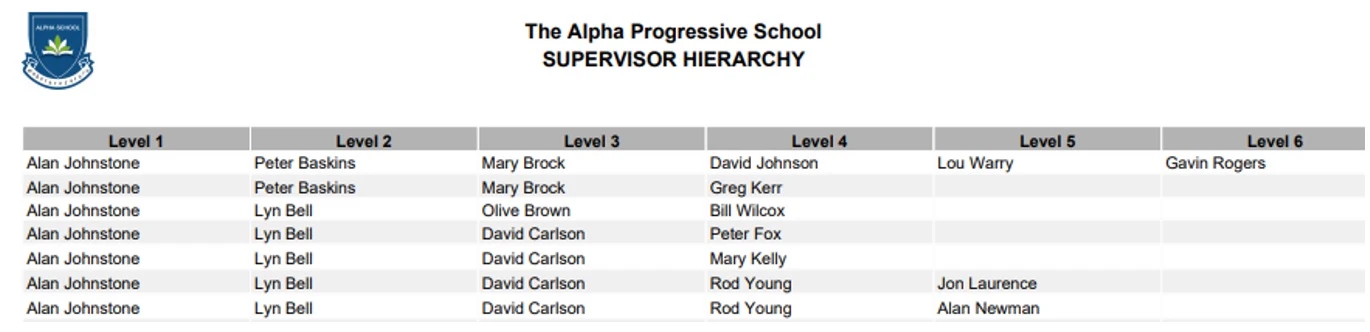 The Organisational chart below (not produced by TASS) reflects the above Supervisor Hierarchy Report from TASS. 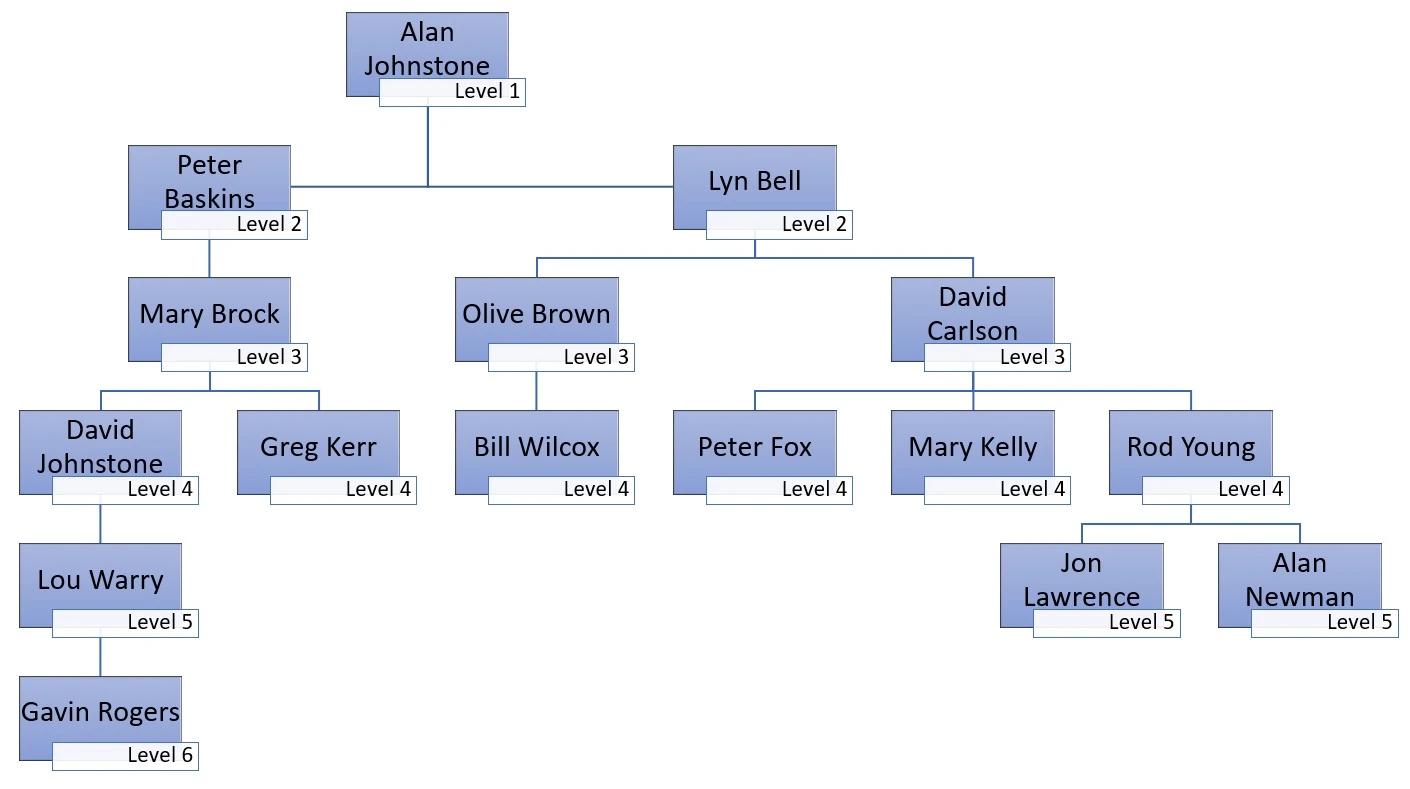 The Supervisor Hierarchy report can be provided to administrators who are responsible for managing Online Leave Applications and PD Activities in Staff Kiosk, as the approval flows for these programs reference the Supervisor Hierarchy. Online Leave Applications When an employee submits an online Leave Application, the approval workflow begins, requiring each approver to approve the leave in the hierarchy order. Each Leave / Other Type can be set up to include any or all of three approver workflows: Example Online Leave Application Approval Workflow: For 'Sick Leave', each employee must have: 1st) 2 Supervisor approvals Gavin Rogers applies for sick leave.
PD Activities When an employee adds a PD Activity that requires approval, their immediate supervisor can approve it. Example PD Activity Approval Workflow: Gavin Rogers adds a PD activity in Staff Kiosk.
If an employee has both 'Supervisor' and 'Supervisor 2' fields populated, either can approve the leave application or PD Activity. | 🔲 |
2 | TASS.web Payroll > Setup Information > Payroll Setup on the 'Schedule' tab. | Create the Work Schedule. Weeks are used to define weekly rotations for part-time and full-time employees who don't work a standard Monday-to-Friday week. Example Week 1 and Week 2, or Week A and Week B. | 🔲 |
3 | TASS.web Payroll > Employee Information > Employees on the 'Payroll Details' tab. | Under the 'Work Schedule' section, enter the working days and hours for part-time staff and full-time employees who don't work a standard Monday-to-Friday week. This is not required for full-time employees who work a standard Monday to Friday week. | 🔲 |
4 | TASS.web General Ledger > Setup Information > Company Information. | On the 'General' tab, ensure that a 'No Reply Email Address' has been nominated. This email address is used for system-generated Online Leave Application emails. | 🔲 |
5 | TASS.web System Admin > Users > Portal Security Permissions. | Assign the Staff Kiosk permissions, located in the 'Payroll/HR' section, to the appropriate User Roles or staff: Administrators/Approvers:
Employees:
| 🔲 |
6 | Staff Kiosk Payroll/HR > Application Parameters (Setup). | Review the Online Leave Application Parameters. Enable the Leave / Other Applications Rename 'Other' to use your preferred school terminology. e.g., 'Inservice' (if required). Associated references to these ‘Other’ non-payroll Leave Lypes will replace the word 'Other' with your preferred terminology. Enable the Teacher Substitutions integration (if required). Ensure teacher substitutions are set up in TASS.web before enabling this feature. See How to Setup Teacher Substitutions for details. Upload any attachments that you want staff to see (if required). Add a default Approval or New Draft Comment (if required). | 🔲 |
7 | Staff Kiosk Payroll/HR > Public Holidays (Setup). | Enter all upcoming Public Holidays. Ensure Public Holidays for at least 12 months in advance have been entered to prevent leave being added for these dates. | 🔲 |
8 | Staff Kiosk Payroll/HR > Leave Types (Setup). | 'Leave Types' only relate to Payroll. If your school does not use TASS Payroll, proceed to the next step. Create the 'Leave Types' that will be available to staff when submitting Leave Applications, and the approver requirements. Each 'Leave Type' must be mapped to a Paycode, and it is assumed that Paycodes are already set up at your school. | 🔲 |
9 | Staff Kiosk Payroll/HR > Other Types (Setup). | 'Other Types' do not relate to Payroll. If you re-named 'Other' in the Application Parameters (Setup), e.g., 'Inservice', the menu item in Staff Kiosk will show as 'Inservice Types (Setup)'. Create other types of leave that do not affect Payroll and the approver requirements. Example Professional Development, School Business. | 🔲 |
10 | TASS.web System Admin > Utilities > Email Settings on the ‘System Email Templates’ tab. | Review and activate the Leave Approval Reminder System Email Templates, if required. Look for the 'LVEAPP' category. The original email sent to approvers after an employee submits a leave application cannot be edited. Only Leave Application Reminder emails are editable. | 🔲 |


The Online Leave Application setup is now complete, and staff can apply for leave in Staff Kiosk Payroll/HR > Leave / Other Applications.