
Scheduling Extra Curricular Sessions and Fixtures (SK EC)
Overview
To schedule an Extra Curricular Session and Fixture in Staff Kiosk Extra Curricular > Extra Curricular Groups, select the ‘Sessions' option from the 'hamburger menu’ in the Action column of the 'Extra Curricular Groups List Screen’.
Create a New Session or Fixture
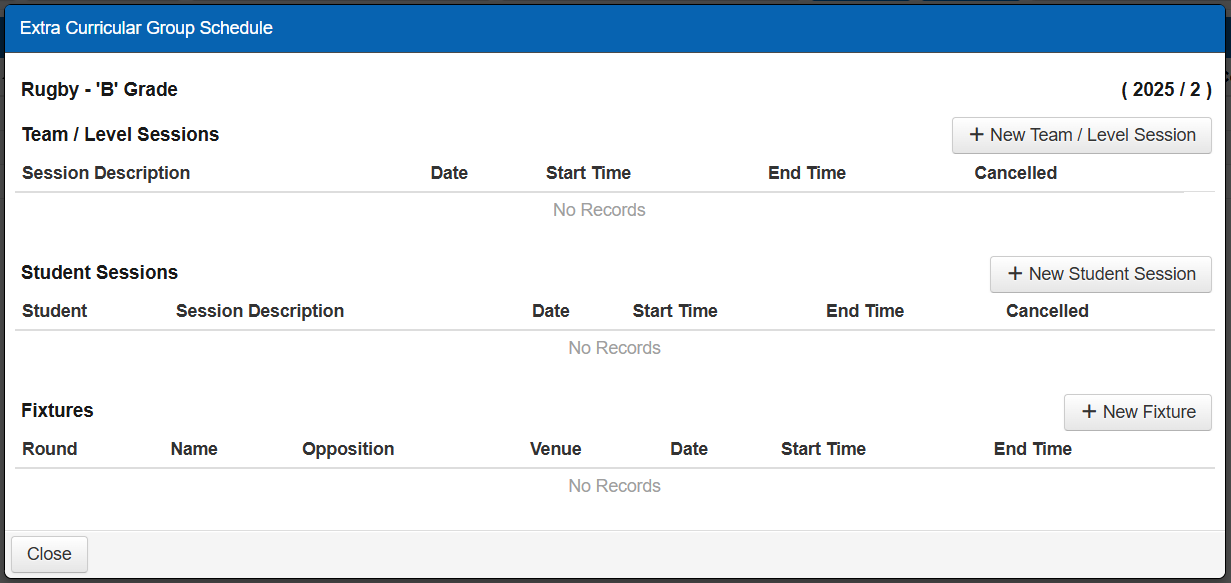
Use the buttons on the right side of the screen to create a new Team/Level Session, an Individual Student Session, or a Fixture.
Example
Button | Description |
|---|---|
+ New Team/Level Session | Use the '+ New Team/Level Session' button to schedule a session for an Extra Curricular (EC) Group. Example Dance rehearsals or afternoon training practice for a hockey team. See the ‘New Team/Level Session’ section below for more information. |
+ New Student Session | Use the '+ New Student Session' button to schedule a one-on-one session with an individual student. Example A private music lesson or tutoring. See the ‘New Student (Individual) Session’ section below for more information. |
+ New Fixture | Use the '+ New Fixture' button to schedule a fixture for an Extra Curricular (EC) Group. Example A weekend game/match against a neighbouring school. See the ‘New Fixtures’ section below for more information. |
Once a session or fixture has been created:
 | Use the ‘Edit Occurrence’ icon to edit an individual session or fixture. |
 | Use the ‘Edit Recurring’ icon to edit the details of a recurring session. |
 | Use the ‘Rollcall’ icon to create and mark a Custom Roll for a scheduled session or fixture. Refer to ‘Marking Attendance for an Extra Curricular Group (SK EC)’ for more information. |
 | Use the ‘Delete’ icon to delete a single session or fixture, or all occurrences of a recurring session. |
Example
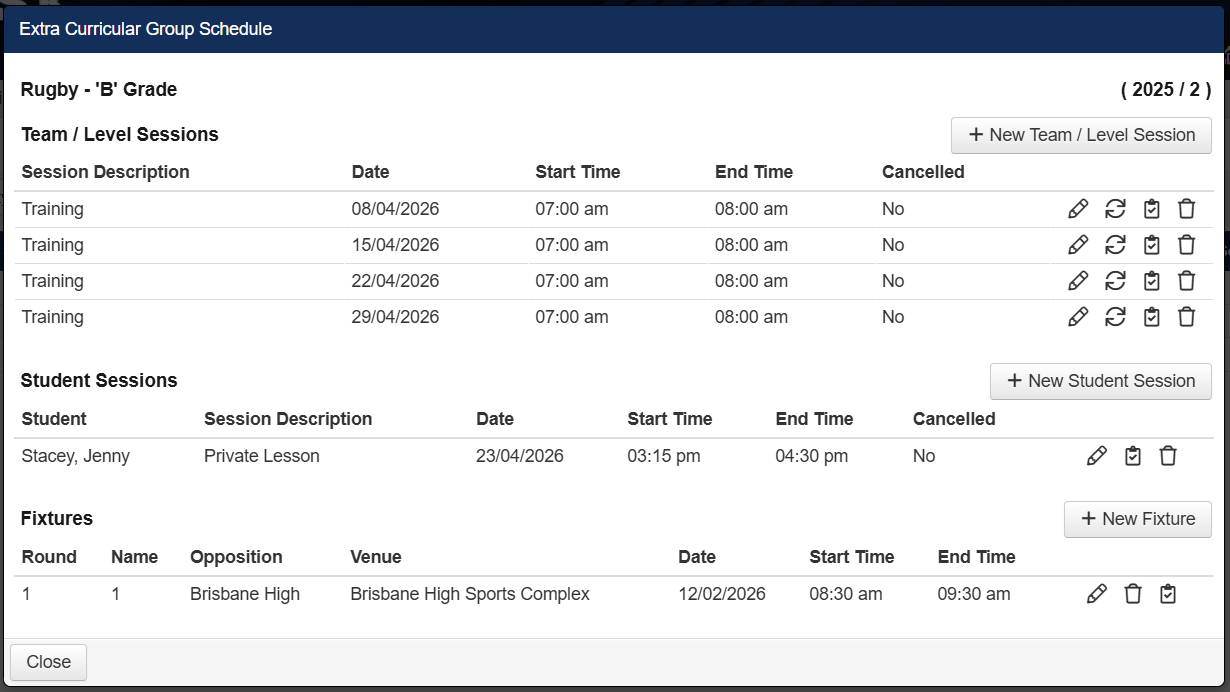

Scheduled sessions and fixtures will appear as events in student eDiaries in Student Cafe and Parent Lounge.
New Team/Level Sessions
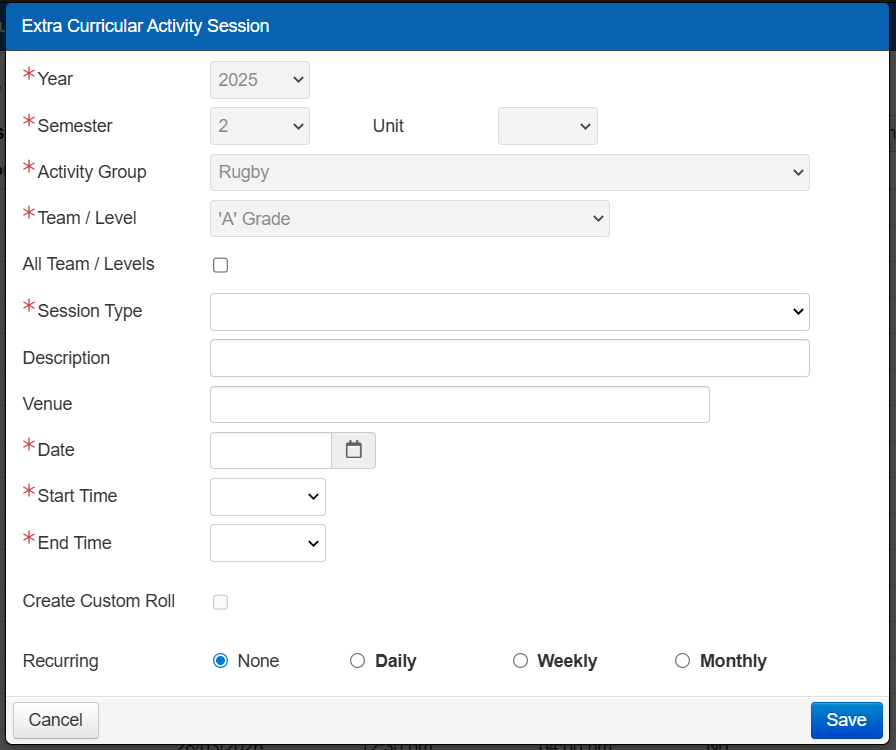
Click the ‘+ New Team/Level Session' button to create a new session for an Extra Curricular (EC) Group. The 'Extra Curricular Activity Session’ screen will then appear with the following fields.
Example
Field Label | Description | ||||||
|---|---|---|---|---|---|---|---|
All Team/Levels | This field is only available when creating a session for an entire Team/Level, using the '+ New Team/Level Session' button. Select the ‘All Team/Levels’ checkbox to create duplicate sessions for each Team/Level for this Extra Curricular Group. Example The school's hockey team has three separate teams: A, B and C Grades. All teams participate in afternoon practice at the same time, but on different fields with dedicated coaches. By ticking this option, afternoon practice sessions will be created for all teams (i.e. the A, B and C Grade teams). | ||||||
* Session Type | Use the ‘Session Type’ drop-down list to select the 'type' of session being scheduled. Examples Rehearsals, tryouts, training practice, tuition or private lessons. | ||||||
Description | Use the ‘Description’ field to enter a description for this scheduled session. The result will be a hyphenated concatenation of the Session Type and Session Description. Example Entering the description 'Rescheduled Violin Lesson' (after a previous rehearsal was cancelled) would result in the following 'Rehearsals - Rescheduled Violin Lesson'. | ||||||
Venue | Use the ‘Venue’ field to enter the location or venue where this session will take place. | ||||||
* Date | Use the ‘Date’ field to enter or select the session date or (starting date when recurring) for this session. | ||||||
* Start Time | In the ‘Start Time’ field, enter or select the time when this session will start. Example The A-Grade Hockey training starts at 3:15 p.m. | ||||||
* End Time | In the ‘End Time’ field, enter or select the time when this session will end. Example The A-Grade Hockey training will be finished by 4:30 p.m. | ||||||
Cancelled | The ‘Cancelled’ checkbox only appears after a session has been created and viewed in Edit mode. You can use this field to flag that this session has been cancelled. When this checkbox is selected, a 'CANCELLED' prefix will be added to the session in:
In addition, a system-generated email will be sent to all students scheduled to attend the session to notify them of the change. | ||||||
Create Custom Roll | Select the ‘Create Custom Roll’ checkbox to auto-generate a single or recurring Custom Roll for the session. Selecting this checkbox displays the Roll Description, Owner, and Assign Admin Rights fields.
When the session is edited, deleted or cancelled, the associated Custom Roll/s will be automatically updated to reflect the change. User Security Permissions Access to this checkbox is controlled by the ‘--Create Custom Rolls’ user permission in TASS.web System Admin > Users > Portal Security Permissions. Refer to ‘Marking Attendance for an Extra Curricular Group’ for more information. | ||||||
Recurring | A session can be set up to recur:
For each 'Repeat Type' (above), there is a corresponding set of fields. Example Weekly requires you to nominate the day(s) that the event (within a week) will repeat on. |


Click ‘Save’ to save the session to the database.
New Student (Individual) Sessions
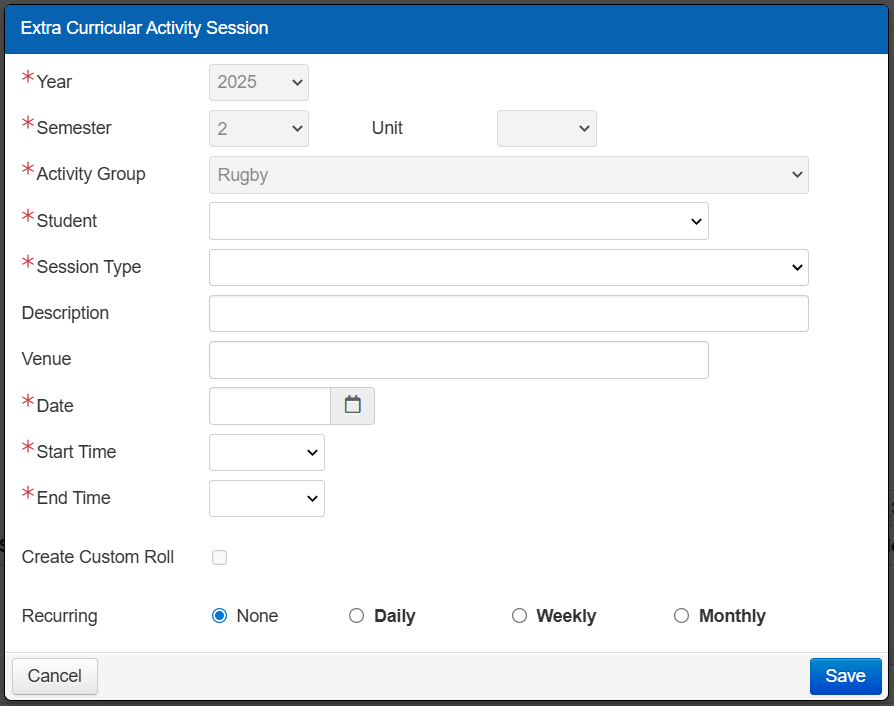
Click the ‘+ New Student Session' button to create a one-on-one session with an individual student. The 'Extra Curricular Activity Session’ screen will then appear with the following fields.
Example
Field Label | Description | ||||||
|---|---|---|---|---|---|---|---|
* Student | The ‘Student’ field is available only when creating a session for an individual student using the '+ New Student Session' button. Select the student for whom this session will be, for this Extra Curricular Group and Team/Level. | ||||||
* Session Type | Use the ‘Session Type’ field to select the 'type' of session being scheduled. Examples Rehearsals, tryouts, training practice, tuition or private lesson. | ||||||
Description | Use the ‘Description’ field to enter a description for this scheduled session. The result will be a hyphenated concatenation of the Session Type and Session Description. Example Entering the description 'Rescheduled Violin Lesson' (after a previous rehearsal was cancelled) would result in the following 'Rehearsals - Rescheduled Violin Lesson'. | ||||||
Venue | Use the ‘Venue’ field to enter the location or venue where this session will take place. | ||||||
* Date | Use the ‘Date’ field to enter or select the session date or (starting date when recurring) for this session. | ||||||
* Start Time | In the ‘Start Time’ field, enter or select the time when this session will start. Example A private music lesson that starts at 11:15 a.m. | ||||||
* End Time | In the ‘End Time’ field, enter or select the time when this session will end. Example The private music lesson finishes at 12:00 p.m. | ||||||
Cancelled | The ‘Cancelled’ checkbox only appears after a session has been created and viewed in Edit mode. You can use this field to flag that this session has been cancelled. When this checkbox is selected, a 'CANCELLED' prefix will be added to the session in:
In addition, a system-generated email will be sent to all students scheduled to attend the session to notify them of the change. | ||||||
Create Custom Roll | Select the ‘Create Custom Roll’ checkbox to auto-generate a single or recurring Custom Roll for the session. Selecting this checkbox displays the Roll Description, Owner, and Assign Admin Rights fields.
When the session is edited, deleted or cancelled, the associated Custom Roll/s will be automatically updated to reflect the change. User Security Permissions Access to this checkbox is controlled by the ‘--Create Custom Rolls’ user permission in TASS.web System Admin > Users > Portal Security Permissions. Refer to ‘Marking Attendance for an Extra Curricular Group’ for more information. | ||||||
Recurring | A session can be set up to recur:
For each 'Repeat Type' (above) there is a corresponding set of fields. Example Weekly requires you to nominate the day(s) that the event (within a week) will repeat on. |
Click ‘Save’ to save the session to the database.
New Fixtures
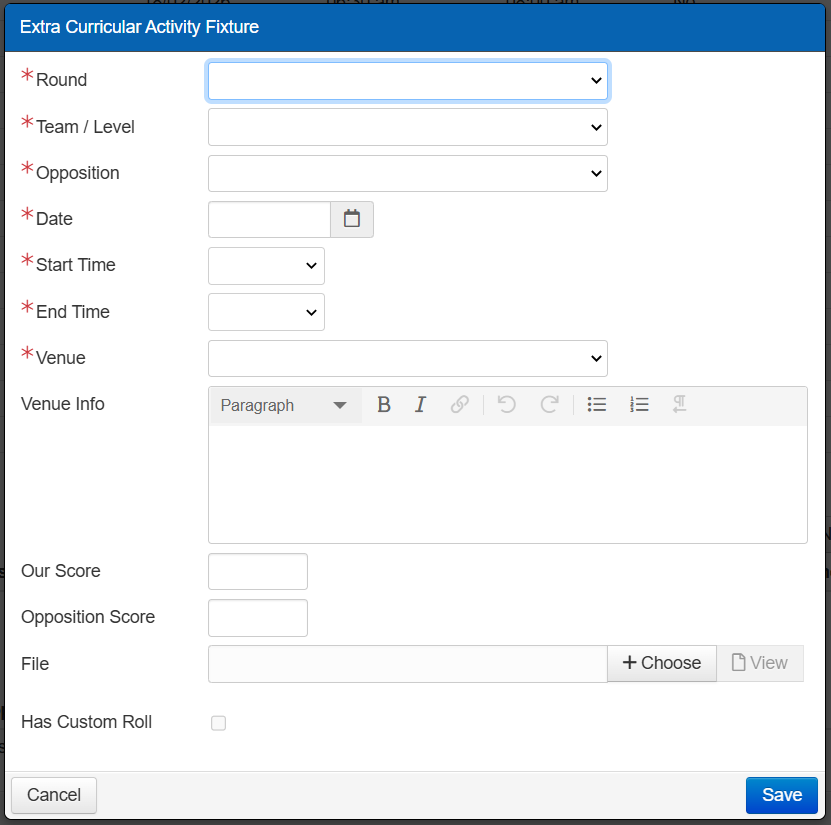
Click the ‘+ New Fixture' button to create a fixture for an Extra Curricular (EC) Group. The 'Extra Curricular Activity Fixture’ screen will then appear with the following fields.
Example
Field Label | Description | ||||||||||||||||||
|---|---|---|---|---|---|---|---|---|---|---|---|---|---|---|---|---|---|---|---|
* Round | Use the ‘Round’ field to select the round that this fixture will be created against. Rounds are maintained in the main Extra Curricular Group record and must be defined before you can start creating fixtures. Click here for more information about creating and maintaining rounds. | ||||||||||||||||||
* Team/Level | The ‘Team/Level’ field is automatically filled with the 'Team' that will be participating in this fixture. | ||||||||||||||||||
* Opposition | Use the ‘Opposition’ picklist to select the opposing team. Example A neighbouring school. If the opposing team's name does not appear in the picklist, add it in Staff Kiosk Extra Curricular > Opposition (Setup). | ||||||||||||||||||
* Date | The ‘Date' field displays the 'Default Date' entered for the nominated round, which can be modified if required. | ||||||||||||||||||
* Start Time | In the ‘Start Time’ field, enter the time when this fixture will start. Example The A-Grade Hockey game on Saturday starts at 10:00 a.m. | ||||||||||||||||||
* End Time | In the ‘End Time’ field, enter the time when this fixture will end. Example The A-Grade Hockey game will be finished by 10:45 a.m. | ||||||||||||||||||
* Venue | In the ‘Venue’ field, select the venue where this fixture will occur. If the venue does not appear in the picklist, add it in Staff Kiosk Extra Curricular > Venues (Setup). | ||||||||||||||||||
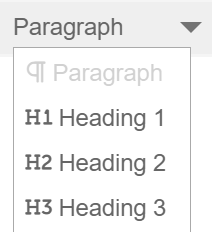
Venue Info | The ‘Venue Info’ field is an optional field for entering venue-specific information. Students and parents can view this information via eDiaries on Student Café and Parent Lounge, as well as in the Parent Orbit app. Staff can also view this information in the Staff Orbit app. The rich text editor allows you to add headings, use bold and italics, add and edit hyperlinks, undo and redo, use bullet lists and ordered lists, and convert text from a list format back to a standard paragraph format.
| ||||||||||||||||||
Our Score | After the Fixture has taken place, you can use the ‘Our Score’ field to enter your team’s score for this fixture. Scores are displayed in the Sports Fixtures and Results Portal. | ||||||||||||||||||
Opposition Score | After the Fixture has taken place, you can use the ‘Opposition Score’ field to enter the opposing team’s score for this fixture. Scores are displayed in the Sports Fixtures and Results Portal. | ||||||||||||||||||
File | Use the ‘File’ field to attach a game report or 'photo' for this fixture. The file that you attach here will be displayed in the Sports Fixtures and Results Portal. | ||||||||||||||||||
Cancelled | The ‘Cancelled’ checkbox only appears after a Fixture has been created and viewed in Edit mode. You can use this field to flag that this session has been cancelled. When this checkbox is selected, a 'CANCELLED' prefix will be added to the fixture in:
In addition, a system-generated email will be sent to all students scheduled to attend the session to notify them of the change. | ||||||||||||||||||
Has Custom Roll | Select the ‘Has Custom Roll’ checkbox to auto-generate a single a Custom Roll for the fixture. Selecting this checkbox displays the Roll Description, Owner, and Assign Admin Rights fields.
When the fixture is edited, deleted or cancelled, the associated Custom Roll/s will be automatically updated to reflect the change. User Security Permissions Access to this checkbox is controlled by the ‘--Create Custom Rolls’ user permission in TASS.web System Admin > Users > Portal Security Permissions. Refer to ‘Marking Attendance for an Extra Curricular Group’ for more information. |


Click ‘Save’ to save the fixture to the database.