
PR - Online Timesheet Rules (SU)
Overview
The 'Online Timesheet Rules' program is used to maintain Online Timesheet Rules, including assigning Rules to Positions.
Using Online Timesheet Rules, schools can set up special rules to handle scenarios where the hours paid differ from the actual hours worked.
Example
For example, some casual pay conditions may specify the minimum pay to be received when work is performed, e.g. A Sports coach may get a minimum of 2 hours' pay for each coaching session.

For more information on setting up ‘Online Timesheets', refer to How to Setup Staff Kiosk Online Timesheets.

Check out the ▶️ Online Timesheets Video for more information.
This program can be accessed by navigating to TASS.web Payroll HRM > Payroll > Setup Information.
User Security Permissions
To use this program, you must have permissions for 'Online Timesheet Rules' in TASS.web System Admin > Users > Security Role Permissions or User Maintenance.
To access the ‘Online Timesheet Rules Program’, assign the ‘View’ permission.
To access the ‘General Tab’, assign the ‘View' permission.
To access the ‘New Role’ button, assign the ‘Add' permission.
To access the ‘Edit’ option, assign the ‘Edit' permission.
To access the ‘Delete’ option, assign the ‘Delete' permission.
To access the ‘Assign Positions’ option, assign the ‘Edit' permission.
General Tab
This tab is used to view, edit, or delete Online Timesheet Rules, as well as assign Positions.
Buttons on the General Tab
New | Click the ' New ' button to create a new Rule using the 'Online Timesheet Rule' modal. |
The Online Timesheet Rules List
Fields that require further explanation | |
|---|---|
Rule Count | The number of Rules Details records for this Rule. |
Action | Click the 'View' or 'Edit' link to open the Online Timesheet Rule details screen. Click the 'Assign' link to open the 'Assign Positions' screen. Click 'Delete' to delete the selected record. If the Rule is in use, you cannot delete it. This option will be greyed out (not editable). Hover over the 'Delete' link for an indication of what is preventing it from being deleted. |
Assign Positions
On the 'Assign Positions' screen, there are two columns to map Positions to an Online Timesheet Rule.
Use the buttons in the centre (i.e. 'Selected' and 'All') to move items in the 'Unassigned' left-column to 'Assigned' right-column, or vice-versa.
In this example, there are no current Positions assigned to this Online Timesheet Rule (the right-hand column 'Assigned Positions' is blank). To assign one or more Positions to this Online Timesheet Rule, select one (or more) 'Unassigned Positions' in the left-hand column and click the 'Selected (right arrow)' button. This will move them over to the 'Assigned Positions' column.
Remember to click the 'Save' button to retain any changes.
Example
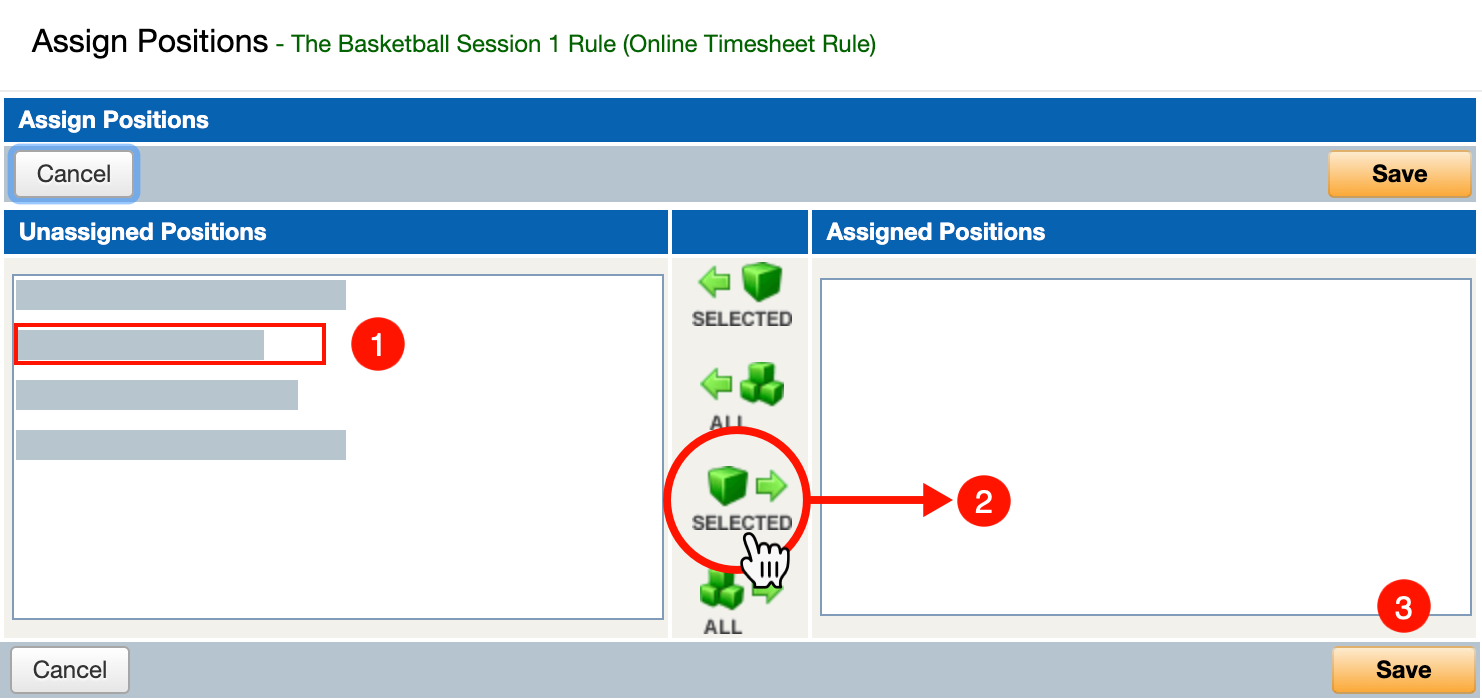
Holding down the 'Shift' key while clicking on your options permits a range selection, holding down the 'Ctrl' key enables selection of discrete (individual) criterion.
Online Timesheet Rule Details Modal
The 'Online Timesheet Rule Details' modal will open when the 'New' button, or 'View' or 'Edit' action links on the 'General' tab are clicked.
Example
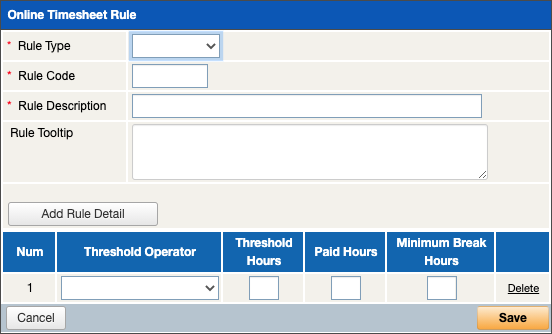
Buttons on the Online Timesheet Rules modal
Add Rule Detail: Click the 'Add Rule Detail ' button to create a new Rule Detail line.
Fields that require further explanation | |
|---|---|
* Rule Type | Select 'Per Session' where you want the Rule to be applied to each Timesheet Entry. Select 'Per Day' where you want the Rule to be applied to all Timesheet Entries for each date. |
*Rule Code | Enter a unique code ('Add' mode only) This field accepts up to 10 alphanumeric characters only (A-Z, 0-9) |
* Rule Description | A description of the Rule. This field accepts up to 50 characters of plain text |
Rule Tooltip | Optional. Enter information that will be visible to employees when they are adding a Timesheet Entry for a Position that has been assigned to this Rule. This field accepts up to 1000 characters of plain text. |
Rule Details | |
Num | This is a system-allocated sequential number. |
Threshold Operator | Select the mathematical operator that will be used with the Threshold Hours value to determine if this Rule Line will be applied. |
Threshold Hours | You must enter the Threshold Hours value that will be used with the Threshold Operator above. Valid values are in range 0.00 to 24.00 (for 5 hours 15 minutes, enter 5.25) |
Paid Hours | Where 'Per Day' Rule Type is selected: Mandatory. Where 'Per Session' Rule Type is selected: Optional where a value is entered for 'Minimum Break Hours'. Valid values are in range 0.00 to 24.00 (for 5 hours 15 minutes, enter 5.25) |
Minimum Break Hours | Where 'Per Day' Rule Type is selected: This field is not editable. Where 'Per Session' Rule Type is selected: Optional where a value is entered for 'Paid Hours'. Valid values are in range 0.00 to 24.00 (for 5 hours 15 minutes, enter 5.25) |
Click 'Delete' to remove the selected record and re-number any remaining records below it. The system will prevent the last Rule Details record from being removed. An alert will be displayed 'Unable to delete. There must be at least one Rule Detail'. | |

When satisfied with your entry, click the ‘Save' or 'Update’ button to commit your changes to the database or 'Cancel' to return to the previous screen.
Print Options
When the 'Print' icon is clicked, the 'Print Online Timesheet Rules Print Options' modal will open.
Fields that require further explanation | ||
|---|---|---|
Report Options | Online Timesheet Rules Listing (the default selection) | Two output options are available:
The Summary report includes the following:
The Detailed report includes all the rule details per Rule record:
|
Assigned Positions Listing | This report includes the following:
| |
Sort By | The default is for the report to sort by 'Rule Description'. Alternatively, you can elect to sort by 'Rule Code'. | |
Formatting Options | Choose to print the report as a PDF or export to Microsoft Excel® or Microsoft Word®. Export to PDF is the default setting. | |
Click 'GO' to generate the report or 'Cancel' to abort the process.