
How to Ghost Log in to the Parent Orbit App
Overview
On this page you will find information on how to set up and ghost log in to Parent Orbit. Parent Orbit Ghost Login is useful for schools to be able to see the app how the parent sees the app for testing new layouts or setups, as well as troubleshooting when a parent reports a problem.
There are three parts to this process:
Part 1: Review Security Role Permissions in TASS.web
Part 2: Download and Install the Parent Orbit App
Part 3: Ghost Login from TASS.web Parent Record
Review Security Role Permissions in TASS.web
Firstly, the user will be required to have the necessary Security Role Permissions assigned to them to access Parent Orbit Ghost Login.
Step | Instructions |
|---|---|
1 | Navigate to TASS.web System Admin > Users > User Maintenance OR Security Role Permissions. |
2 | There are 3 permissions required for accessing Parent Orbit Ghost Login, under the Parent Records heading.
Tick these three checkboxes. 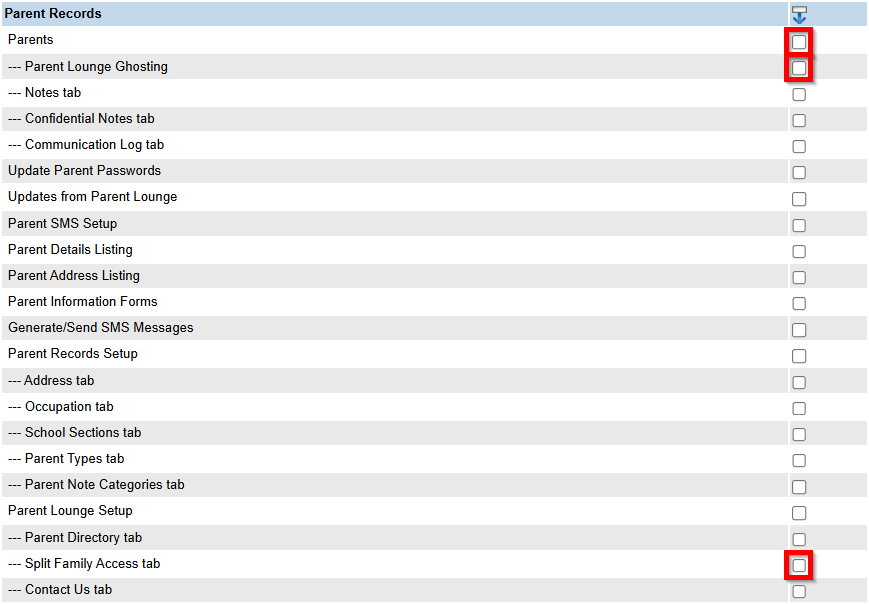 |
3 | Click ‘Save’. |
Download and Install the Parent Orbit App
Secondly, the user will need to download and install the Parent Orbit app.
Step | Instructions |
|---|---|
1 | Navigate to the Apple App Store or Google Play store and search ‘Parent Orbit’. |
2 | Tap ‘Install’. After the app has installed, tap ‘Open’. |
3 | On the Login screen, the user will see a field for ‘School Code’, and an ‘Administrator Login’ button. Tap 'Administrator Login'. If the user is also a parent at the school, they can enter their school code here, which after tapping ‘Submit’ will allow them to log in with their parent login details. |
4 | The app will ask to access the device camera. Tap ‘Allow’. |
5 | Use the camera to scan the QR code generated from the parent record. |

Ghost Login from TASS.web Parent Record
Step | Instructions |
|---|---|
1 | Navigate to TASS.web Student Admin > Parent Records > Parent Information > Parents. |
2 | Search or select a current parent and click ‘View’. |
3 | On the General tab, under Parent Lounge Access, there will be a button for ‘Parent Orbit Ghost Login’. 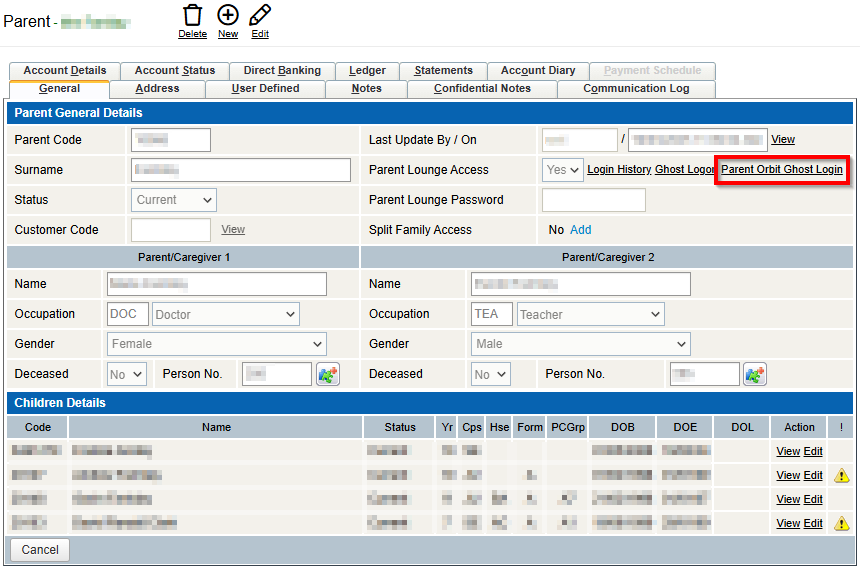 |
4 | Click on ‘Parent Orbit Ghost Login’ to bring up the ‘Parent Orbit Ghost Logon’ screen. 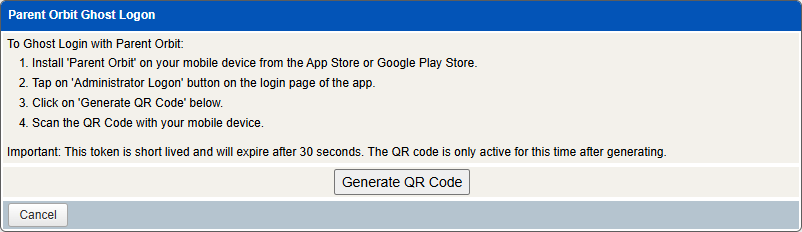 |
5 | Click ‘Generate QR Code’. 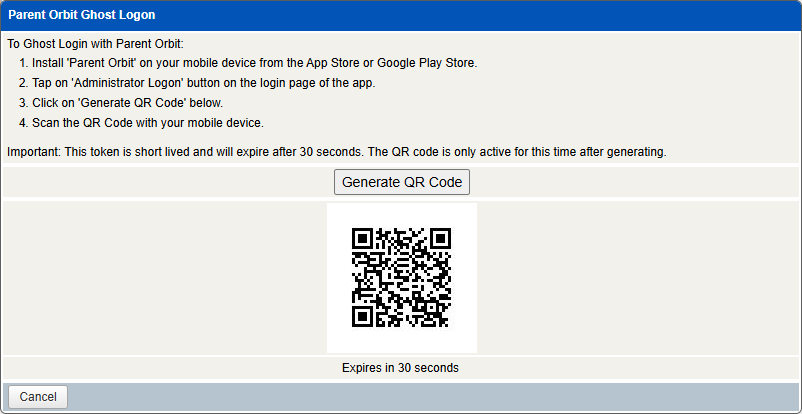 |
6 | On the mobile device, make sure Parent Orbit is installed. On the Login screen, tap 'Administrator Login'. Scan the QR Code with the device camera. This token is short lived and will expire after 30 seconds. The QR code is only active for this time after generating. |
7 | The app will then ask to allow access to information from Parent Lounge, the list on this page gives the user an idea of what sort of data they will be viewing through the app. Tap ‘Allow’. |
8 | The user will now be able to see the Homepage that the parent would be able to see when they log in using their username and password. |
9 | When finished with the session, log out via the Side Menu. |