
How to Setup a New API Endpoint User Account
The new ‘API Endpoint Maintenance’ program lets users securely select specific return data for .NET APIs. It supports API creation, endpoint management, and detailed access key control. Administrators can assign precise permissions for Add, Update, Read, and Delete actions to ensure data security and prevent over- or under-fetching.
Use the following checklist to set up APIs in TASS.web System Admin > Utilities > API Endpoint Maintenance, after TASS has enabled the feature flag.

API Documentation can be found here: api.developer.tassweb.com.au. Read the ‘Introduction’, then select your TASS Software Version from the ‘Version’ drop-down list.
Step | Menu Path | Details | ✅ |
|---|---|---|---|
1 | TASS.web System Admin > Users > User Maintenance or TASS.web System Admin > Users > Security Role Permissions | Enable User Security Permissions Enable the necessary User Security Permissions for the user running the ‘API Endpoint Maintenance’ program. | 🔲 |
2 | TASS.web System Admin > Utilities > API Endpoint Maintenance | Create a new API Endpoint User To start using an API, you will first need to create an API Endpoint User record and grant them the appropriate access to companies and endpoints. Click ‘+ Add New User’ and enter the mandatory fields flagged with a red star. Refer to the ‘API Endpoint Maintenance’ article for more information. Click ‘+ Add Company', select a Company from the dropdown list, then click ‘Add.’ The selected Company Code and Name will then appear in the ‘Companies’ section of the screen. Click ‘+ Add Endpoint’ and select the checkboxes next to each endpoint that the user requires access to, then click ‘Add’. For each Endpoint you have activated, click the ‘Edit’ icon and select the actions that the user can perform for the endpoint (Read, Add, Update, and Delete). For each Action that you have activated, click the ‘Edit’ icon and select the Fields that the user can access.
After you have assigned all the required Security Roles, scroll to the bottom of the screen and click ‘Save’. The new API Endpoint User will now appear on the API Endpoint Maintenance program landing page. For endpoints requiring security roles, ensure the relevant program areas are assigned to that role. For example, Student UD Areas must also be assigned to that role in TASS.web Student Admin > Student Records > Setup Information > Student Records Setup on the ‘UD Areas’ tab. | 🔲 |
3 | TASS.web System Admin > Utilities > API Endpoint Maintenance | Generate the User Key and Secret Once the API Endpoint User is created, the user must be assigned a Key and Secret. Click the ‘Key’ icon in the Action column. Enter a ‘Passphrase’ for the user to access their Key and Secret, set the ‘Link Expiry Time’, then click ‘Generate’. This will send an email to the email address registered against the user when you set them up. The email will contain a link for the user to click to retrieve their credentials. The user will need the correct Passphrase to access their Key and Secret. Important! A secure method must be used to share the Passphrase with the API Endpoint User. Ensure the user saves these credentials in a secure location, as they cannot be viewed again. If you need to generate a new key or secret, just repeat this process. | 🔲 |
4 | Your preferred API platform | Call the TASS API Access to the TASS API can be gained from http://[School’s TASS Domain]/API/users The API utilises JSON Web Tokens (JWTs) for security. There is an endpoint called 'POS User - Authenticate' where the user can provide their Key and Secret credentials. If authentication is successful, the user will receive a JWT that must be included with each subsequent secure endpoint. A JWT will expire after 15 minutes, at which point the user will need to make another call to the same endpoint to obtain a new token. For more information, refer to the 'POS User - Authenticate' documentation for your TASS Software Version at api.developer.tassweb.com.au Using your preferred API platform, you can call the user endpoint like so: 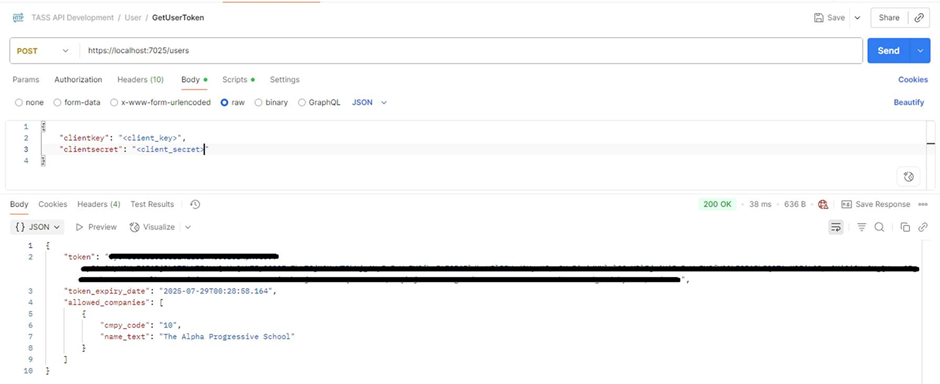 Then, to call a secure endpoint, set the authorisation header with the token from above and make your call: 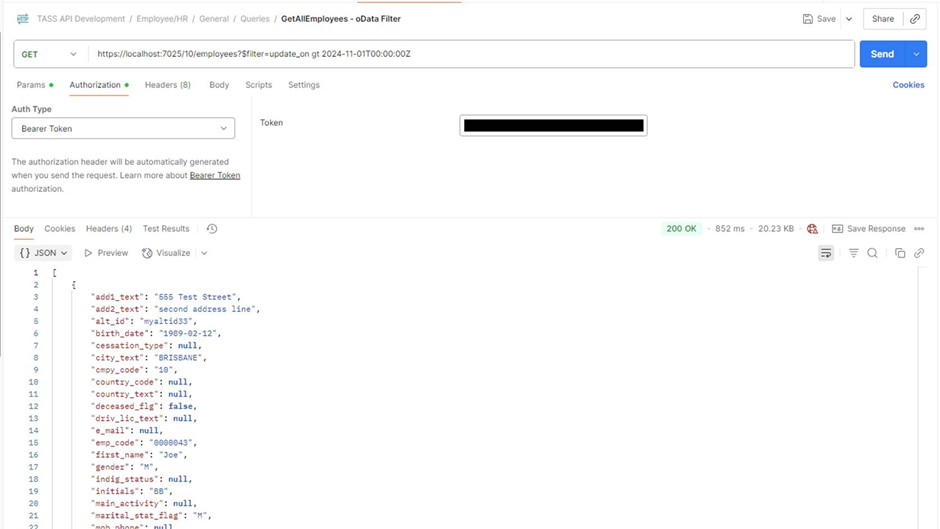 Most schools can use and access the API Endpoints immediately. However, a few need TASS Technical Services to install an update on their server first. If your school requires this installation, you would have received information about this in the email communications for the v01.2026.01.201 TASS Software Release. To book an API installation, visit Stack Booking. | 🔲 |


